How to Set Spotify Sleep Timer — Stop Music Automatically (Complete Guide 2026)
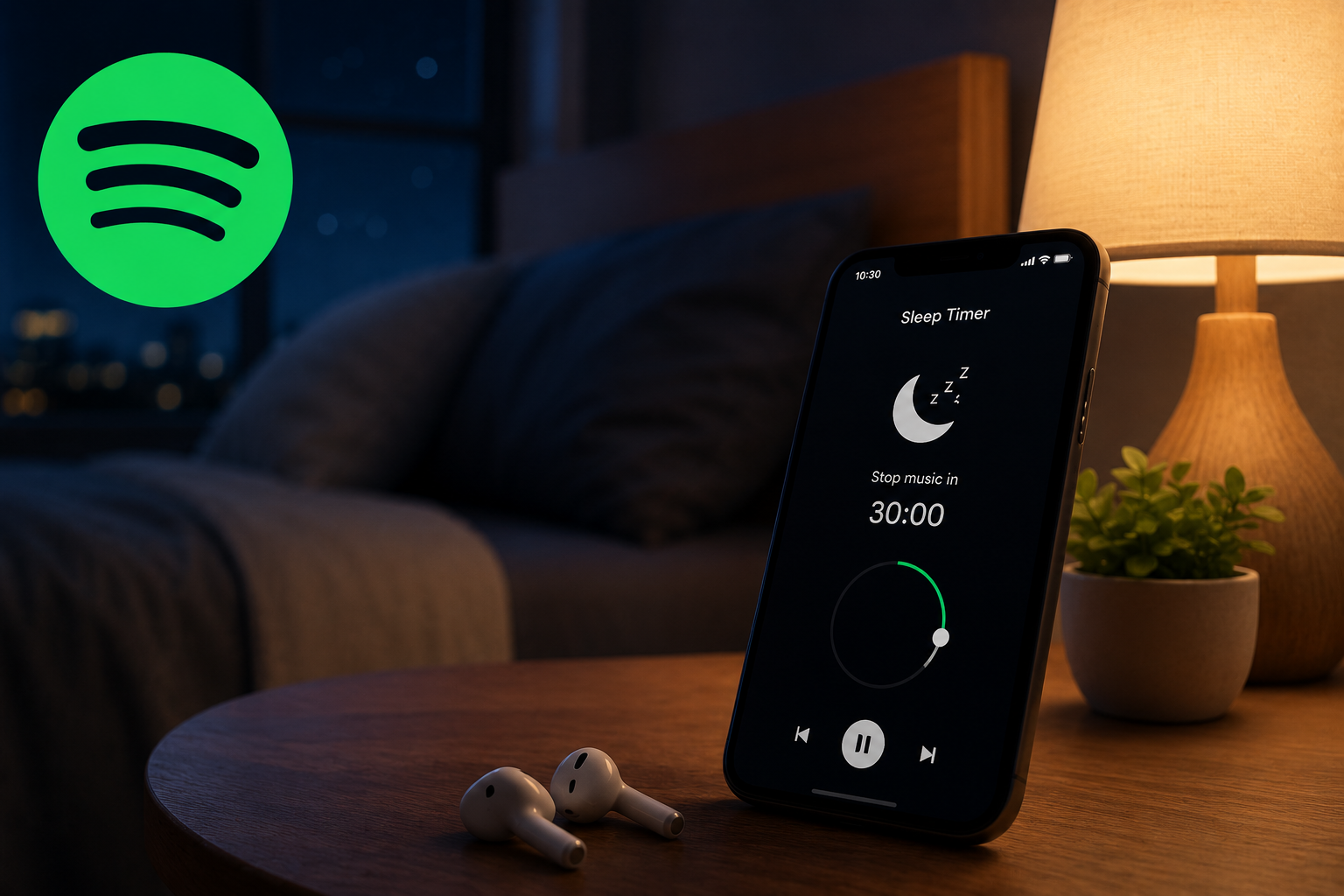
Falling asleep while listening to music, podcasts, meditation tracks, or relaxing sounds has become part of many people’s nighttime routine. However, one common problem users face is forgetting to stop playback before sleeping. Music continues playing for hours, draining battery life, consuming internet data, and interrupting sleep quality. This is exactly why the Spotify sleep timer feature has become so popular.
The sleep timer allows users to automatically stop Spotify playback after a selected amount of time. Instead of manually pausing songs before sleeping, you can simply set a timer and let the app handle everything automatically.
In this complete guide, you’ll learn how to set a Spotify sleep timer, how it works on Android and iPhone, whether it works on desktop devices, common problems and fixes, and the best ways to use this feature for music, podcasts, relaxation, and better sleep habits.
What Is Spotify Sleep Timer?
The Spotify sleep timer is a built-in playback feature that automatically pauses music, playlists, podcasts, or audiobooks after a specific amount of time. It is designed for users who listen to audio before sleeping and do not want the playback running throughout the night.
Instead of keeping Spotify active until morning, the app stops playback automatically once the timer ends. This gives users more control over their listening sessions and helps improve the overall streaming experience.
The feature works with:
Spotify originally introduced this feature mainly for podcast listeners, but it quickly became useful for music lovers as well.
How the Spotify Sleep Timer Works
The sleep timer works through a countdown system attached to the current playback session. Once activated, Spotify continues playing your selected content until the timer reaches zero. After the countdown finishes, playback automatically stops without requiring any user interaction.
Users can choose multiple time durations depending on their needs. For example, someone taking a short nap may set the timer for 10 minutes, while another person listening to podcasts before bedtime may select 45 minutes or “End of Track.”
The flexibility of the timer makes it useful for different situations, including:
Because Spotify syncs playback across devices, the timer applies directly to the active listening session on your mobile device.
Why Spotify Sleep Timer Is So Popular
One major reason users love this feature is convenience. Many people fall asleep while listening to music and don’t want to wake up later just to stop playback manually.
The sleep timer solves this problem by automating the process. It also provides several additional benefits that improve both device performance and listening habits.
Better Sleep Experience
Continuous music playback can interrupt deep sleep cycles, especially when playlists suddenly change genres or louder songs begin playing. By automatically stopping music, the sleep timer creates a more peaceful nighttime environment.
Battery Saving
If Spotify continues streaming audio overnight, it consumes unnecessary battery power. Using the sleep timer prevents hours of background playback and helps preserve battery life.
Lower Mobile Data Usage
For users streaming over mobile data, overnight playback can consume a significant amount of bandwidth. Automatically stopping playback reduces unnecessary data usage.
Improved Podcast Listening
Many people listen to podcasts before bed, but never finish the episode because they fall asleep. The sleep timer allows listeners to stop playback naturally without losing their place completely.
How to Set Spotify Sleep Timer on Mobile (Android & iPhone)
The easiest way to use the sleep timer is through the Spotify mobile app. The feature is available on both Android and iPhone devices, and the setup process is nearly identical.
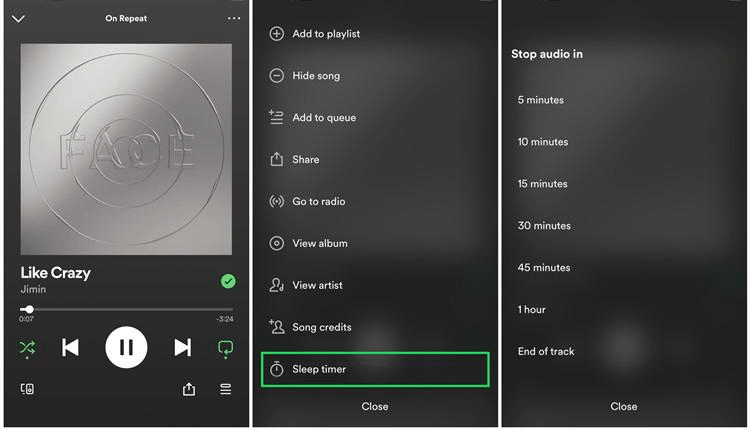
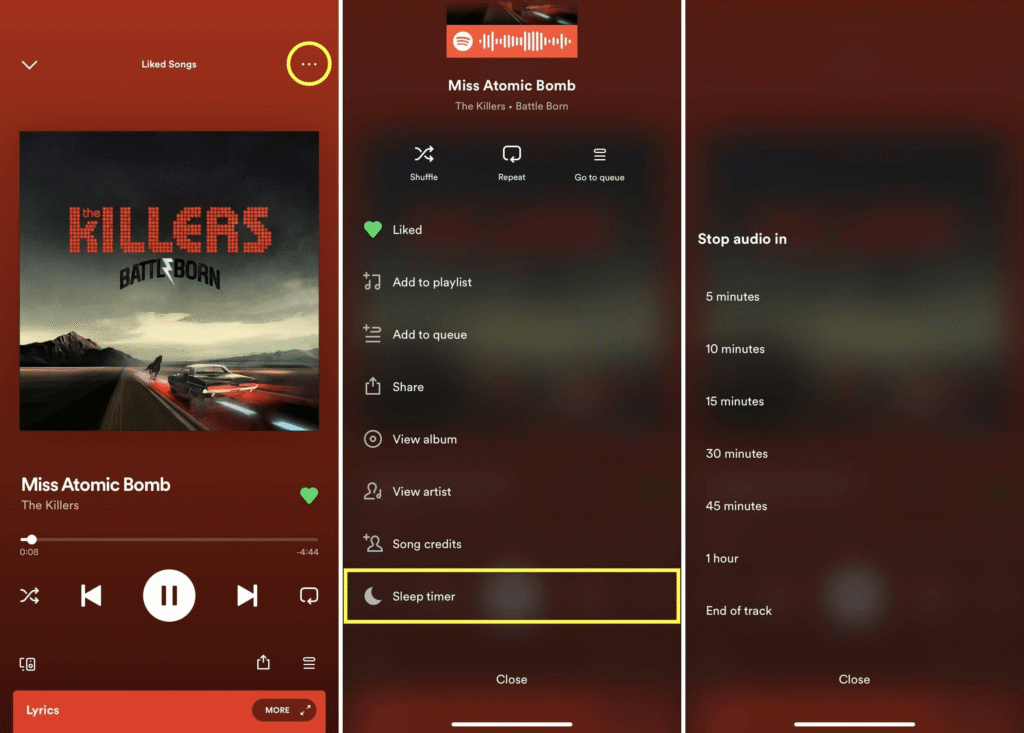
To activate the timer, first open Spotify and begin playing any song, playlist, podcast, or audiobook. Once playback starts, open the “Now Playing” screen where the playback controls are displayed.
From there, tap the three-dot menu icon in the upper corner of the screen. Spotify will open additional playback settings and options. Scroll down until you see the Sleep Timer feature.
Once selected, Spotify allows you to choose a playback duration such as:
After choosing a duration, the timer activates immediately. Spotify will then continue playing until the selected time ends.
How to Use Spotify Sleep Timer on iPhone
On iPhone devices, the built-in Spotify timer usually works smoothly, but Apple users also have an alternative method available through iOS itself.
The standard Spotify method involves:
- Opening the playback screen
- Accessing the three-dot menu
- Selecting Sleep Timer
- Choosing a duration
However, if the feature does not appear due to app version differences or temporary bugs, iPhone users can still stop playback using the Clock app.
This method works by:
When the timer ends, iOS automatically stops all active media playback, including Spotify.
This workaround is extremely useful for users who cannot find the built-in timer inside the Spotify app.
How to Set Spotify Sleep Timer on Android
Android users generally experience the most consistent access to the sleep timer feature because Spotify’s Android app supports it directly across most versions.
The setup process is simple:
Because Android devices vary between manufacturers, the interface may look slightly different depending on the phone model, but the feature location usually remains the same.
Many Android users rely heavily on the sleep timer for:
The feature is especially popular among users who sleep with headphones or smart speakers connected.
Can You Use Spotify Sleep Timer on Desktop?
One of the most searched questions online is whether Spotify offers a sleep timer for desktop users. Unfortunately, Spotify currently does not include a native sleep timer feature for Windows or Mac desktop applications.
This limitation frustrates many users who listen to music on laptops or desktop computers before sleeping.
However, several workarounds exist.
Using System Sleep Timers
Windows and macOS both include power-management tools that can automatically put the system to sleep after inactivity. While this does not directly stop Spotify playback, it effectively ends audio sessions.
Third-Party Automation Tools
Some users install third-party timer applications that automatically close Spotify or pause system audio after a selected duration.
Browser Extensions
Spotify Web Player users can sometimes use browser-based timer extensions to stop playback automatically.
Although these methods are not as convenient as Spotify’s mobile sleep timer, they still help users manage nighttime listening more effectively.
Sleep Timer Options Explained
Spotify offers several timer durations so users can customize playback based on their personal routine.
Short timers, such as 5 or 10 minutes, work well for:
Longer timers, such as 30 or 45 minutes, are ideal for:
The “End of Track” option is especially useful because it allows the current song or episode to finish naturally before playback stops completely.
This creates a smoother listening experience without abrupt interruptions.
Best Ways to Use Spotify Sleep Timer
The Spotify sleep timer is more versatile than many users realize. While bedtime listening is the most obvious use case, the feature also improves productivity, focus, and relaxation.
Sleep Music and Relaxation
Many users create calming playlists with:
The sleep timer ensures playback stops automatically after users fall asleep.
Podcasts Before Bed
Podcast listeners often fall asleep before episodes finish. The sleep timer prevents several episodes from playing continuously overnight.
Study Sessions
Students commonly use timers during study sessions because timed playback helps maintain concentration while avoiding distractions later.
Meditation and Mindfulness
Meditation sessions usually follow a specific duration. The sleep timer helps users maintain a routine without manually stopping playback afterward.
Spotify Sleep Timer Not Working? (Fixes & Solutions)
Although the feature works well most of the time, users occasionally encounter problems.
The most common issue is the sleep timer option disappearing from the app menu. This usually happens due to outdated app versions or temporary software glitches.
Other users report that playback continues even after setting the timer.
Fortunately, most problems are easy to fix.
Update Spotify
Older app versions may not support the latest playback features properly.
Restart the Device
A quick restart often resolves temporary app issues.
Clear Spotify Cache
Cached files can sometimes interfere with playback settings and timers.
Log Out and Log Back In
Refreshing the account session may restore missing options.
Reinstall Spotify
If the problem persists, reinstalling the app usually fixes corrupted files or interface bugs.
Most sleep timer issues are temporary and can be solved within minutes.
Spotify Sleep Timer vs Manual Stop
Many users wonder whether manually stopping music is enough instead of using a timer. While both methods achieve the same result, the sleep timer offers significantly more convenience.
Manual stopping requires users to remain awake and pause playback themselves. In contrast, the timer automates the entire process.
| Feature | Sleep Timer | Manual Stop |
|---|---|---|
| Automatic playback stop | Yes | No |
| Sleep-friendly | Yes | Limited |
| Battery saving | Excellent | Moderate |
| Hands-free experience | Yes | No |
| Convenience level | High | Low |
For nighttime listening, the sleep timer is clearly the better option.
Frequently Asked Questions
Where is the Sleep Timer in Spotify?
The sleep timer is located inside the Now Playing screen under the three-dot playback menu.
Does Spotify Sleep Timer Work for Podcasts?
Yes, it works perfectly with podcasts and audiobooks.
Can I Use Sleep Timer on Spotify Desktop?
No, Spotify desktop currently does not support a built-in sleep timer.
Why Is Sleep Timer Missing?
This is usually caused by outdated app versions, temporary UI changes, or software bugs.
Does Sleep Timer Work With Playlists?
Yes, the feature supports songs, playlists, podcasts, and albums.
Can Spotify Stop Music Automatically?
Yes, that is exactly what the sleep timer feature does.
Final Thoughts
The Spotify sleep timer is one of the platform’s most useful hidden features for users who enjoy music, podcasts, or relaxation audio before sleeping. Instead of letting playback continue all night, the timer automatically stops audio after a selected duration, creating a more controlled and comfortable listening experience.
Learning how to set a Spotify sleep timer not only improves convenience but also helps reduce battery usage, save mobile data, and support healthier sleep habits. Whether you’re listening to calming music, meditation sounds, or long podcast episodes, this feature gives you complete control over nighttime playback without any manual effort.