How to Download Songs for Offline Listening on Spotify (2026 Complete Guide)
Have you ever been stuck on a long flight, stuck in a subway tunnel, or traveling through a remote area with zero internet access, wishing you could still listen to your favorite songs? You’re not alone. Over 50% of Spotify users want offline listening for travel and data-saving purposes. With Spotify having over 600 million users globally, offline playback has become one of the most sought-after features, and luckily, Spotify Premium makes it possible.
This complete 2026 guide will walk you through exactly how to download songs for offline listening on Spotify on iPhone, Android, Windows PC, Mac, Apple Watch, and Samsung Galaxy Watch. We’ll also cover essential limits, troubleshooting tips, and why offline mode is essential for audiophiles and travelers alike.
Can You Download Songs on Spotify? Free vs Premium Explained
Before diving into the download process, it’s critical to understand which account type allows offline listening. This distinction separates Spotify Free users from Premium subscribers.
What Features Require Spotify Premium?
| Feature | Spotify Free | Spotify Premium |
|---|---|---|
| Offline Downloads | ❌ No | ✅ Yes |
| Ad-Free Listening | ❌ Yes | ✅ Yes |
| Unlimited Skips | ❌ No (6 per hour) | ✅ Yes |
| On-Demand Mobile Playback | ❌ Shuffle Only | ✅ Yes |
| Download Quality | N/A | 96kbps – 320kbps |
| Podcast Downloads | ❌ No | ✅ Yes |
Spotify Premium is required to download songs, albums, playlists, and podcasts for offline playback. Free users cannot download any content to their devices, regardless of platform.
What Free Users Get (Without Premium)
If you’re tired of ads and limited skips, consider upgrading to Premium to unlock offline mode and full control over your music experience.
Step-by-Step: How to Download Songs on Mobile (iPhone & Android)
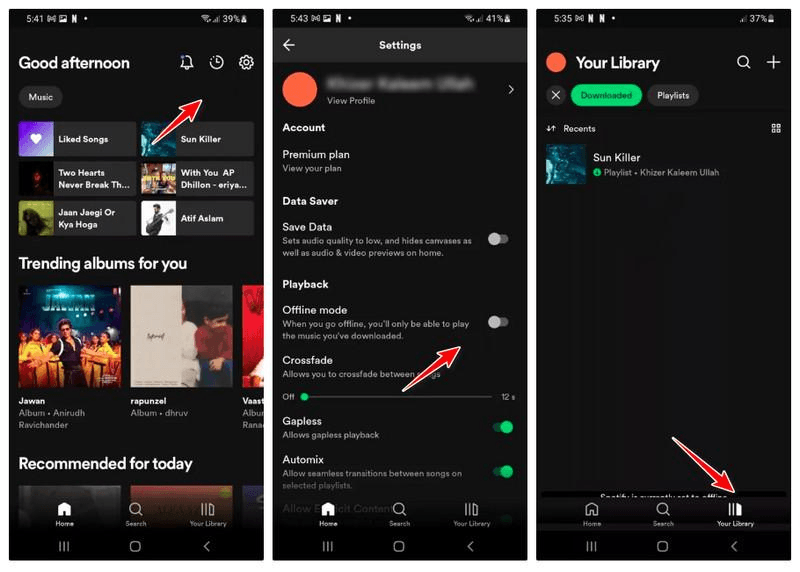
Mobile devices are the most common platform for offline listening. Here’s how to download songs on both iPhone and Android with clear, numbered steps.
Prerequisites Before Downloading on Mobile
✅ Active Spotify Premium subscription (Individual, Family, or Student plan)
✅ At least 100MB free storage space on your device
✅ Stable WiFi connection (recommended to avoid using mobile data)
✅ Spotify app updated to the latest version (check App Store or Google Play)
How to Download a Playlist on Mobile
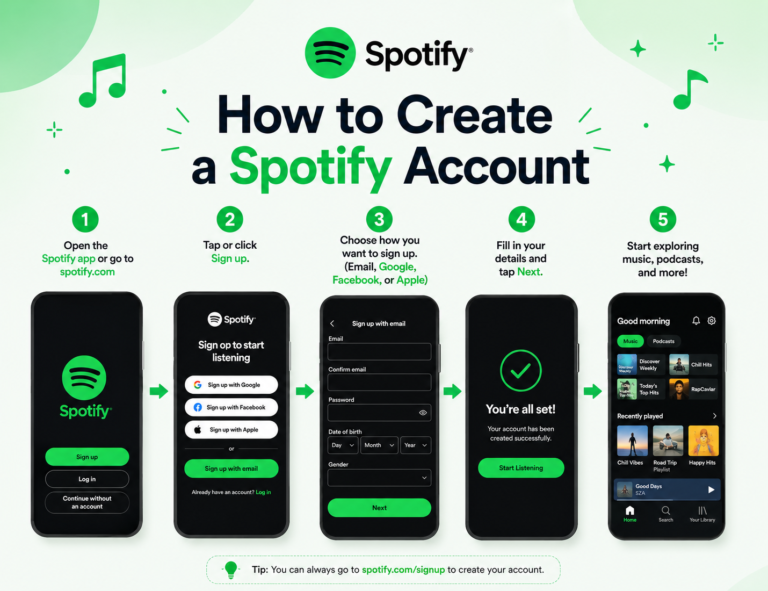
- Open the Spotify app on your iPhone or Android device.
- Tap “Your Library” at the bottom right corner.
- Tap “Playlists” to view your saved playlists.
- Select the playlist you want to download.
- Tap the download toggle switch (↓ icon) at the top of the playlist screen.
- Wait for the green downward arrow ✅ to appear next to the playlist title (indicates complete download).
- If the download fails, check your internet connection and retry.
Once the green arrow appears, the entire playlist is saved offline and ready to play without internet.
How to Download an Album on Mobile
- Open Spotify and use the Search tab to find the album.
- Tap on the album page to open it.
- Tap the download toggle (↓ icon) at the top right.
- All tracks will download automatically.
- Watch for the green arrow ✅ to confirm completion.
Album downloads are especially useful for listening to full albums without skipping tracks.
How to Download Individual Songs on Mobile
- Go to “Your Library” → Tap “Songs”.
- Find the song you want to download.
- Tap the download icon (↓) next to the song title.
- The song will save to your “Downloaded” section in the Library.
Note: Downloading individual songs works best for frequently played tracks. For large collections, playlists are more efficient.
How to Download Podcasts & Episodes on Mobile
- Open the podcast episode page.
- Toggle the “Download” switch below the episode title.
- Downloaded episodes appear in your “Downloads” section under “Your Library.”
Podcast downloads are ideal for commuters who listen to audio content during long drives or flights.
Step-by-Step: How to Download Songs on Desktop (Windows PC & Mac)
Desktop users often want offline listening for work, study, or travel preparation. Here’s how to download on Windows and Mac.
Prerequisites for Desktop Downloads
- ✅ Spotify desktop app installed (Windows 10 or macOS 10.12+)
- ✅ Spotify Premium subscription active
- ✅ At least 5GB free hard drive space recommended
How to Download Playlists on PC/Mac
- Open the Spotify desktop app.
- Go to “Library” on the left sidebar.
- Select the playlist you want to download.
- Click the download toggle (↓ icon) at the top of the playlist view.
- A green arrow ✅ appears when the download completes.
- Downloaded playlists show under the “Downloaded” section in the left sidebar.
How to Download Albums on Desktop
- Use the Search bar to find the album.
- Open the album page.
- Click the download icon (↓) next to the album title.
- All tracks download automatically.
- Check the green arrow ✅ icon to confirm completion.
How to Download Individual Songs on Desktop
- Go to “Your Library” → Click “Songs”.
- Right-click the song you want to download.
- Select “Download” from the context menu.
- The song saves to your offline library.
Desktop downloads are faster than mobile downloads due to better connectivity and larger storage capacity. It’s ideal for backing up large music collections before traveling.
Step-by-Step: How to Download on Wearables (Apple Watch & Galaxy Watch)
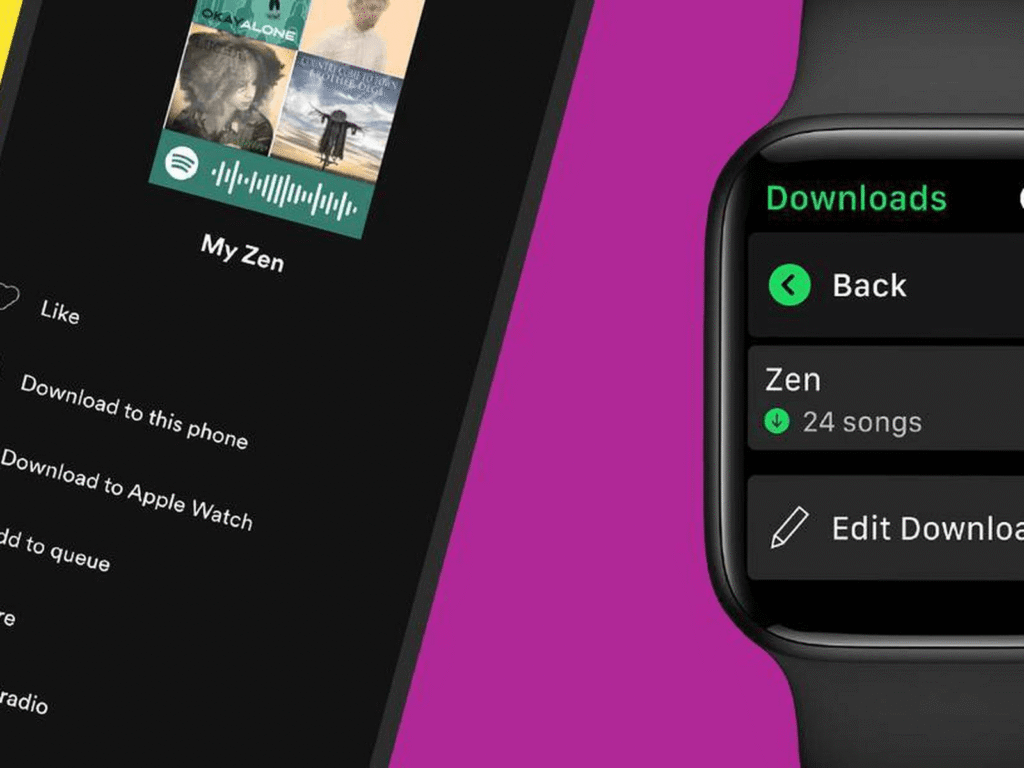
Smartwatch owners can enjoy offline listening without carrying their phone at all. Here’s how to do it.
Apple Watch Downloads
- Pair your Apple Watch with your iPhone.
- Install the Spotify app on your Watch (via Watch app on iPhone).
- Open Spotify on the Watch and sign in to your Premium account.
- Go to the playlist or album you want to download.
- Tap the download icon (↓).
- Wait for the green checkmark ✅ to appear.
- Listen via Bluetooth headphones without your iPhone nearby.
Note: Apple Watch downloads are limited to playlists only (individual songs cannot be downloaded directly to the Watch).
Samsung Galaxy Watch Downloads
- Install Spotify on your Galaxy Watch (via Galaxy Store).
- Open Spotify and sign in to your Premium account.
- Select the playlist you want to download.
- Tap the download icon (↓).
- Once complete, you can listen offline using Bluetooth headphones.
Wearable offline playback is perfect for workouts, running, or swimming when you don’t want to carry your phone.
Spotify Offline Limits & Rules You Must Know
Spotify enforces strict limits on offline downloads to prevent abuse and manage licensing costs. Understanding these limits will save you frustration.
Track and Device Limits
| Limit Type | Maximum Allowed |
|---|---|
| Tracks per Device | 10,000 songs |
| Devices per Account | 5 devices |
| Download Quality Options | 3 (Normal, High, Very High) |
| License Renewal Period | Every 30 days |
| Storage per 100 Songs (Normal) | ~300 MB |
| Storage per 100 Songs (Very High) | ~1 GB |
Audio Quality Settings
Spotify offers three download quality tiers:
To change download quality:
- Open Spotify → Tap “Settings” (gear icon).
- Go to “Audio Quality.”
- Under “Download Quality,” select Normal, High, or Very High.
Higher quality means better sound, but it consumes more storage. For travelers with limited space, Normal or High is recommended.
Storage Requirements
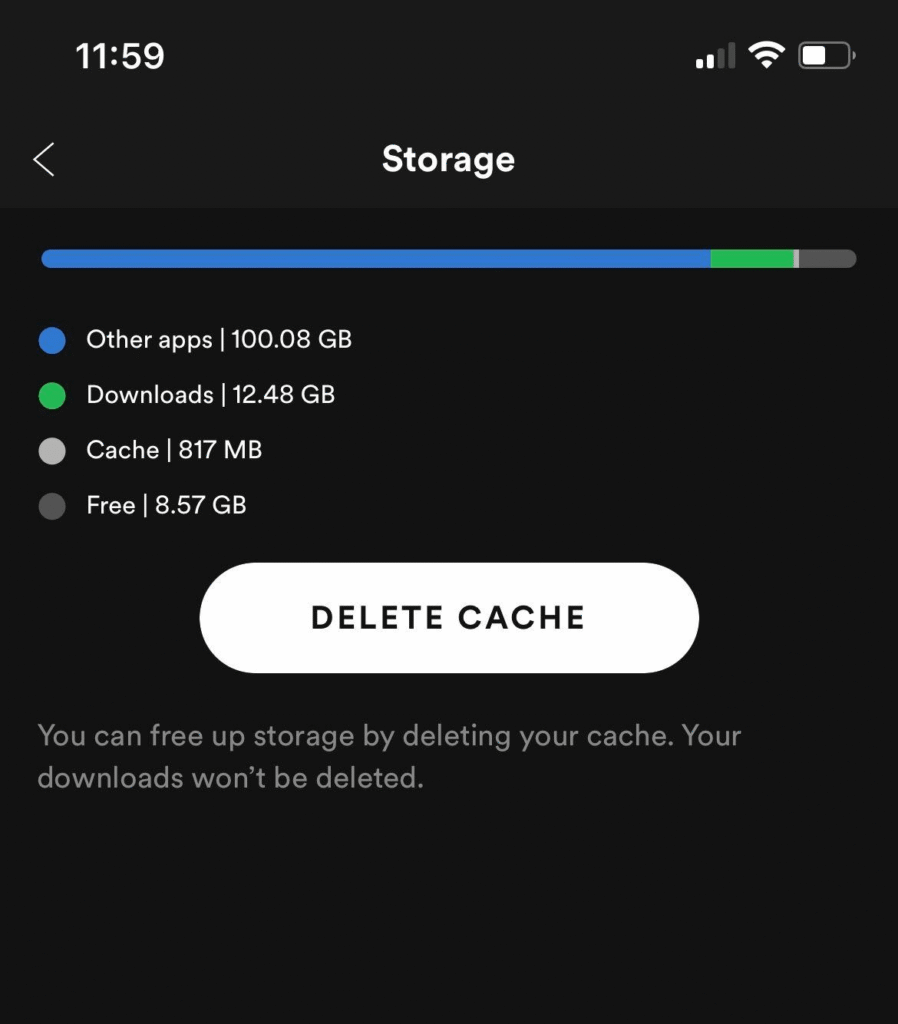
Before downloading large playlists, check your available storage. Use “Settings → Storage” to see current usage and free up space if needed.
Troubleshooting: Why Spotify Downloads Won’t Work
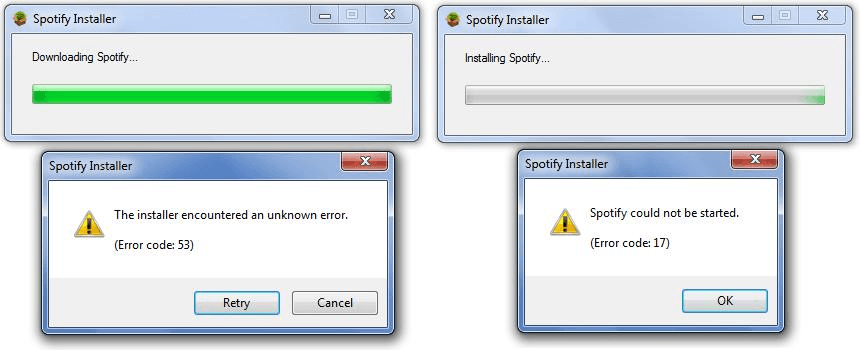
Even though downloading on Spotify is straightforward, issues can arise. Here’s how to fix the most common problems.
Common Download Issues & Fixes
| Problem | Likely Cause | Solution |
|---|---|---|
| Download button grayed out | Using Spotify Free | Upgrade to Premium |
| Downloads not completing | Weak internet | Switch to WiFi |
| Offline mode is not working | Expired after 30 days | Re-download after reconnecting |
| Can’t download new songs | Reached 10,000 track limit | Remove old downloads |
| The device hasn’t connected in 30 days | Offline mode disabled | Enable in Settings |
| Songs unplayable offline | Connect to the internet once | Connect to internet once |
Step-by-Step Fixes for Download Issues
- Check Premium status: Go to Settings → Account → Confirm Premium is active.
- Check internet connection: Reset WiFi or mobile data and retry.
- Check device storage: Ensure at least 1GB of free space on your phone or computer.
- Re-download content: Remove downloaded songs → Tap download again.
- Reinstall Spotify: Delete the app → Reinstall from App Store/Google Play → Sign in.
- Clear cache: Go to Settings → Storage → Tap “Clear Cache.”
When All Else Fails
Most download issues resolve within 10–15 minutes using these steps.
Tips to Optimize Your Offline Listening Experience
Smart downloading strategies can save you time, storage space, and data.
Smart Download Strategies
Managing Downloaded Content
Battery Saving Tips for Offline Playback
With these tips, you can maximize your offline listening experience while keeping storage and battery consumption in check.
Conclusion
Downloading songs for offline listening on Spotify is simple when you know the steps. Spotify Premium is required; free users cannot download content. You can download on iPhone, Android, PC, Mac, Apple Watch, and Galaxy Watch, with a limit of 10,000 tracks per device across 5 devices total. Downloads expire after 30 days without internet, but reconnecting renews them.
Whether you’re on a long flight, in a subway with no signal, or camping without WiFi, offline mode keeps your music playing. Plus, it saves mobile data and loads faster.
Ready to start? Upgrade to Spotify Premium today, download your favorite playlists, and listen offline anywhere without interruption.
Do downloaded Spotify songs expire?
Yes. Downloads expire after 30 days if your device doesn’t connect to the internet. Connect to WiFi or mobile data at least once every 30 days to renew licenses.
Why is my download button grayed out?
This happens if you’re using Spotify Free. Upgrade to Premium to unlock downloading features
Can I download Spotify songs as MP3 files?
No. Spotify downloads are encrypted and only playable inside the Spotify app. MP3 conversion is not allowed and violates Spotify’s terms of service.
Can I download offline content on multiple devices at once?
Yes. You can download on up to 5 devices using one Premium account. Downloads run in parallel on each device if you initiate them simultaneously.