How to Download Spotify on Android, iPhone and PC — Complete Beginner Guide
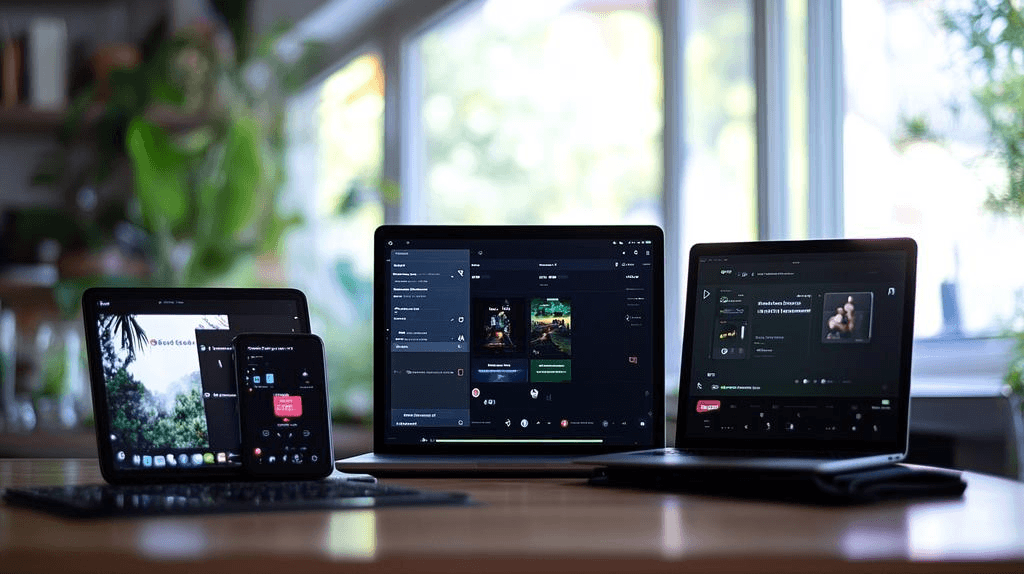
Listening to music has become easier than ever thanks to platforms like Spotify. Whether you want to enjoy trending songs, relaxing playlists, podcasts, or audiobooks, Spotify allows users to stream content across multiple devices without complicated setup steps.
Many beginners search for ways to download Spotify on mobile phones and computers, but often get confused between official apps, APK files, desktop installers, and browser versions. This guide explains everything in a simple step-by-step format so you can safely install Spotify on Android, iPhone, Windows PC, or Mac.
You will also learn:
If you are completely new to Spotify, this beginner-friendly tutorial will help you start streaming music within minutes.
What Is Spotify?
Spotify is a popular music streaming platform that gives users access to millions of songs, podcasts, and curated playlists from artists around the world. The service works on smartphones, tablets, laptops, desktops, smart TVs, and gaming consoles.
The platform became popular because of its:
Users can choose between Spotify Free and Spotify Premium depending on their listening preferences.
Key Features of Spotify
Some of the most useful Spotify features include:
Because of these features, Spotify remains one of the most downloaded audio streaming apps worldwide.
Spotify Free vs Premium
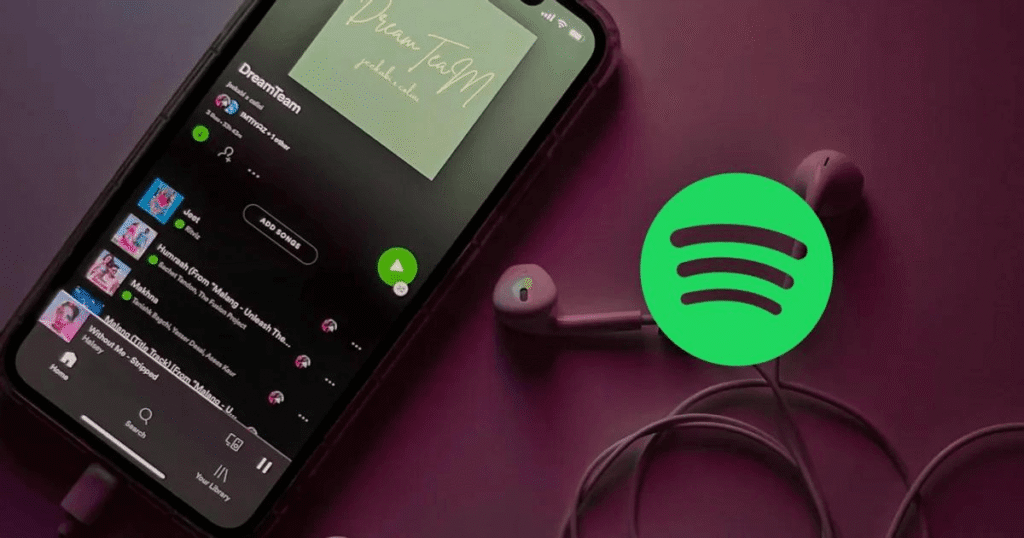
Before installing the app, it is important to understand the difference between the free and paid versions.
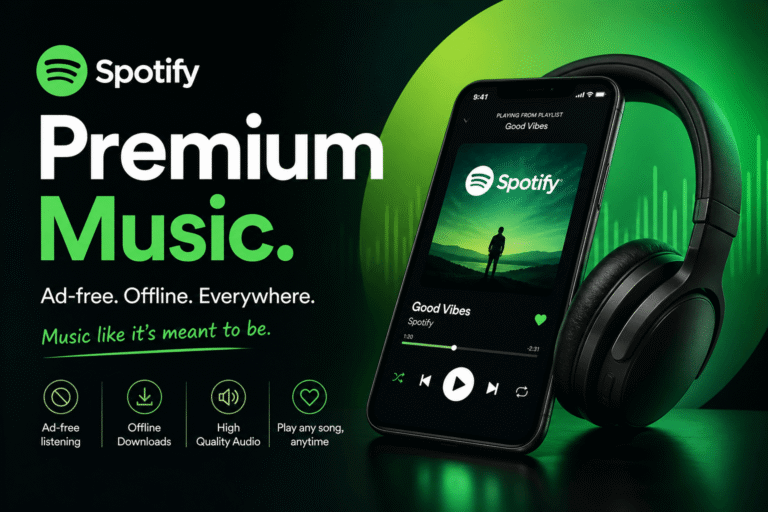
| Feature | Spotify Free | Spotify Premium |
|---|---|---|
| Ads | Yes | No |
| Offline listening | No | Yes |
| Unlimited skips | Limited | Unlimited |
| Audio quality | Standard | High quality |
| Background playback | Limited | Full access |
If you only want basic streaming, the free version works well. However, users who travel frequently or prefer uninterrupted listening often upgrade to Spotify Premium.
System Requirements Before Downloading Spotify
Before you install Spotify, make sure your device meets the basic requirements.
Android Requirements
iPhone & iPad Requirements
PC & Laptop Requirements
Older devices may still run Spotify, but performance could be slower.
How to Download Spotify on Android
Android users can easily install Spotify through the Play Store.
Download Spotify from the Google Play Store
Follow these steps carefully:
- Open the Google Play Store on your Android phone.
- Search for the Spotify app.
- Select the official Spotify application.
- Tap the Install button.
- Wait for the download process to complete.
- Open the app after installation finishes.
The app installs automatically once downloaded.
How to Create a Spotify Account on Android
After opening the app:
You can also sign in using:
Once logged in, Spotify immediately recommends playlists and artists based on your interests.
Common Android Download Problems
Sometimes users face issues while trying to download Spotify on Android.
App Not Installing
This usually happens because:
Play Store Errors
Clear the Play Store cache and restart the device before trying again.
Spotify Keeps Crashing
Update the app or reinstall it completely.
Avoid downloading unofficial Spotify APK files from unknown websites because they may contain malware or security risks.
How to Download Spotify on iPhone
Installing Spotify on iOS devices is very similar to Android.
Install Spotify from the Apple App Store
Follow these steps:
- Open the Apple App Store
- Search for Spotify
- Tap Get
- Wait for the installation to complete
- Open the app
The process normally takes only a few minutes.
Set Up Spotify on iPhone
After installing:
Spotify works smoothly on most modern iPhones and iPads.
Fix Spotify Installation Issues on iPhone
If the app does not install:
Many users fix installation problems simply by updating their operating system.
How to Download Spotify on PC or Laptop
Desktop users can install Spotify through the official website or the Microsoft Store.
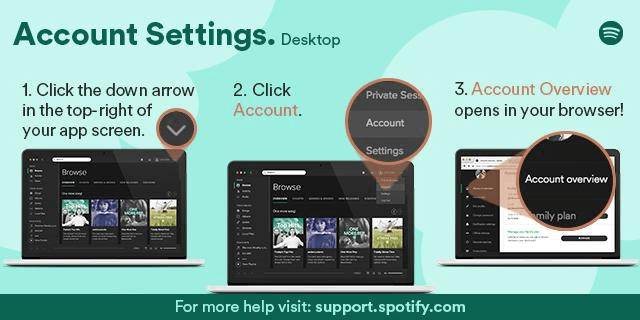
Download Spotify from the official website
To install Spotify manually:
- Visit the official Spotify website
- Click Download
- Run the installer file
- Follow the setup instructions
- Launch the app
The desktop version provides a larger interface and smoother playlist management.
Install Spotify from the Microsoft Store
Windows users can also install Spotify directly from the Microsoft Store:
This method is easier for beginners because updates happen automatically.
How to Use the Spotify Desktop App
After installation:
The Spotify desktop app also supports keyboard shortcuts and device syncing.
How to Download Spotify on Mac
Mac users can install Spotify using the official macOS installer.
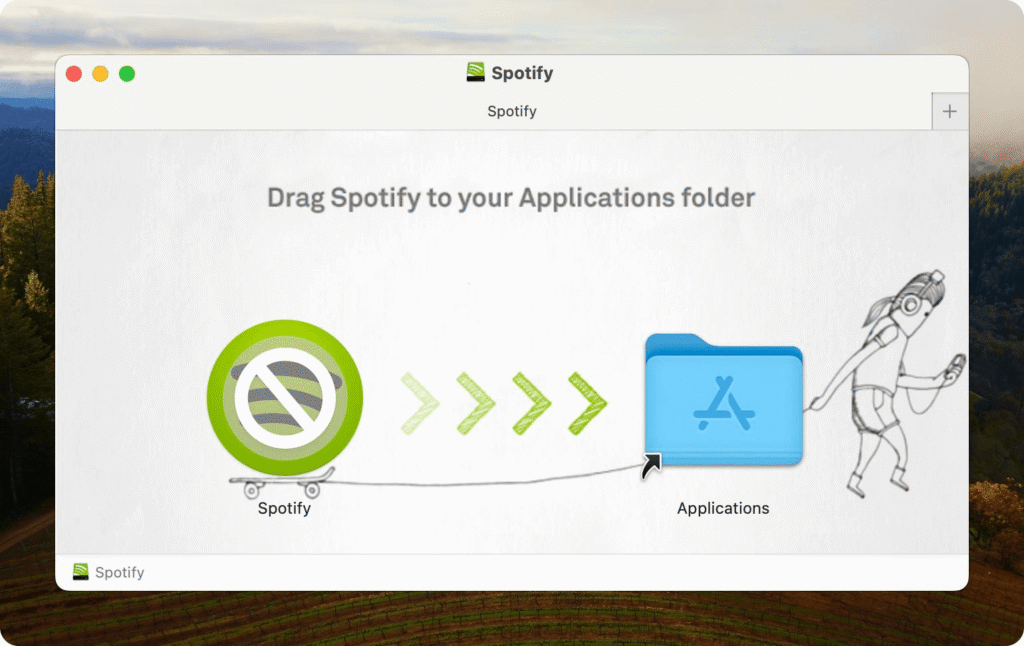
Install Spotify on macOS
Steps include:
- Visit Spotify’s official website
- Download the macOS installer
- Open the DMG file
- Drag Spotify into the Applications folder
- Launch the app
After login, your playlists and account settings automatically sync across devices.
Mac Installation Troubleshooting
If Spotify does not open:
Most installation problems are caused by outdated system software.
Can You Use Spotify Without Downloading the App?
Yes. Spotify also offers a browser-based version called Spotify Web Player.
What Is Spotify Web Player?
The Web Player allows users to:
This is useful for users who do not want to install software on their computer.
Web Player vs Desktop App
| Feature | Web Player | Desktop App |
|---|---|---|
| Installation needed | No | Yes |
| Offline listening | No | Yes |
| Better performance | Limited | Yes |
| Advanced audio control | Basic | Full |
The desktop app usually provides a smoother experience than the browser version.
Is Spotify Safe to Download?
Yes, Spotify is safe when downloaded from official sources.
Why Official Downloads Matter
Always use:
Avoid unofficial APK websites because modified apps may:
Many fake websites promote unsafe versions of Spotify to attract downloads.
How to Update Spotify on Android, iPhone, and PC
Keeping Spotify updated improves security and app performance.
Update Spotify on Android
Update Spotify on iPhone
Update Spotify on PC
Desktop apps usually update automatically. You can also reinstall the newest version manually from Spotify’s website.
Common Spotify Download and Installation Errors
Users sometimes experience installation issues during setup.
Spotify Not Downloading
Possible causes:
Spotify Login Problems
Reset your password or check your account credentials carefully.
Spotify Keeps Crashing
Please clear the cache or reinstall the app.
Slow Download Speeds
Switch to a stronger Wi-Fi network before retrying.
Tips for Using Spotify After Installation
Once Spotify is installed, these tips improve your listening experience.
Create Your First Playlist
Organize favorite songs into custom playlists for workouts, study sessions, or travel.
Enable Offline Listening
Premium users can download songs and playlists for offline playback.
Adjust Audio Quality
Spotify allows users to select different streaming quality levels depending on internet speed.
Connect Bluetooth Devices
You can connect Spotify to:
Conclusion
Downloading Spotify on Android, iPhone, or PC is a simple process when using official sources. Whether you choose the mobile app, desktop version, or Spotify Web Player, the platform makes music streaming accessible across nearly every device.
For the best experience:
Once installed, you can enjoy millions of songs, podcasts, playlists, and personalized recommendations anytime and anywhere
Can I install Spotify on multiple devices?
Yes, you can install the Spotify app on multiple devices, including Android phones, iPhones, tablets, PCs, and Macs. Simply log into the same Spotify account on each device to access your playlists, music, and podcasts anywhere.
How to play Spotify on phone and PC at the same time?
Spotify normally allows playback on only one device at a time with the same account. If you start playing music on your PC, playback on your phone may stop automatically unless you use separate accounts or a Spotify Premium Duo/Family plan.
How to sync Spotify with phone and PC?
To sync Spotify between your phone and PC, log into the same Spotify account on both devices and connect them to the internet. Your playlists, liked songs, listening history, and settings will automatically sync through your account.