How to Use Spotify Crossfade and Equalizer Settings: The Complete Guide (2026)
Listening to music on Spotify is already convenient, but many users never fully explore the platform’s advanced playback tools. Features like Spotify crossfade and Spotify equalizer settings can dramatically improve your listening experience by creating smoother song transitions and more personalized sound quality.
If you’ve ever been frustrated by awkward silence between songs, uneven audio levels, weak bass, or flat sound quality, Spotify’s playback settings can solve those problems quickly. Whether you use headphones, Bluetooth speakers, a car sound system, or studio monitors, learning how to customize Spotify audio settings can make music feel more immersive and professional.
In this complete guide, you’ll learn how to use Spotify crossfade and equalizer settings, the best EQ presets for different genres, ideal crossfade durations, troubleshooting solutions, and additional playback settings that improve overall audio quality on Android, iPhone, and desktop devices.
How to Use Spotify Crossfade and Equalizer Settings
To use Spotify crossfade and equalizer settings, open Spotify and go to Settings & Privacy > Playback. Crossfade blends songs together by fading one track into the next, while the equalizer allows users to adjust bass, mids, and treble frequencies for personalized sound quality. Both settings are available on Spotify mobile and desktop apps.
What Is Spotify Crossfade?
Spotify crossfade is a playback feature that smoothly transitions one song into another instead of allowing silence between tracks. As the current song fades out, the next song fades in gradually, creating a seamless listening experience similar to a DJ mix.
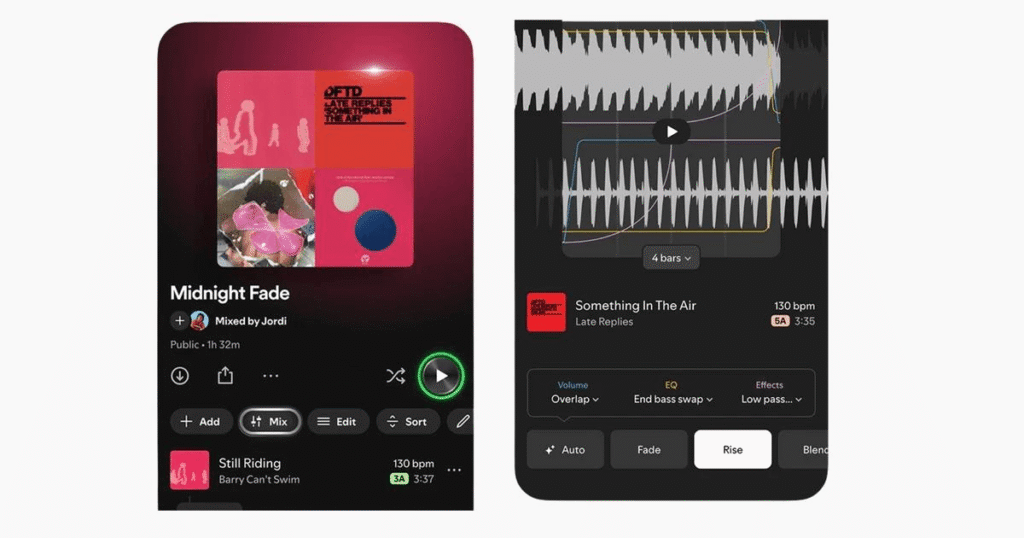
This feature has become extremely popular among users who enjoy uninterrupted music sessions. Workout playlists, party mixes, and road trip playlists often sound more energetic when songs flow naturally into each other instead of stopping abruptly.
However, crossfade is not ideal for every type of music. Certain albums, especially classical recordings, cinematic soundtracks, or live performances, intentionally include silence between tracks for artistic reasons. In those cases, crossfade may interrupt the intended listening experience.
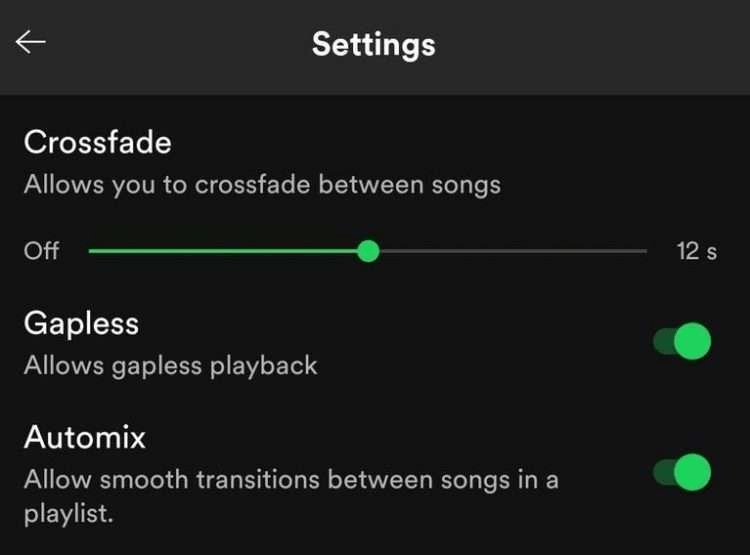
Many users also confuse crossfade with gapless playback and Spotify automix, but these features work differently. Gapless playback simply removes silent pauses between tracks, while crossfade overlaps songs during transitions. Automix uses Spotify’s algorithms to create smoother transitions automatically for selected playlists.
Why Spotify Crossfade Improves Listening Experience
One major reason users enable crossfade is that it creates a more immersive listening environment. Abrupt pauses between tracks can break momentum, especially during workouts, parties, or long driving sessions. Crossfade solves this by maintaining continuous energy throughout the playlist.
It also helps playlists feel more professionally mixed. Even casual listeners notice smoother transitions when songs blend naturally instead of cutting suddenly from one track to another.
For gym playlists and high-energy music, longer crossfade durations often create a nonstop flow that keeps motivation high. Meanwhile, shorter fade durations work better for everyday listening because transitions remain smooth without sounding overly mixed.
How to Enable Crossfade on Spotify
Spotify allows users to activate crossfade on both mobile and desktop apps. The process is simple and only takes a few moments.
How to Enable Crossfade on iPhone (iOS)
On iPhone, open the Spotify app and tap your profile icon to access Settings & Privacy. Inside the Playback section, you’ll find the Crossfade option. Once enabled, Spotify displays a slider allowing you to control how many seconds songs overlap during transitions.
Users can experiment with different fade durations depending on their music preferences. Lower values create subtle transitions, while longer durations create stronger DJ-style mixing effects.
How to Enable Crossfade on Android
The Android version follows nearly the same process. After opening Spotify settings, go to Playback and enable Crossfade songs. Android devices may display the settings slightly differently depending on the manufacturer, but the feature location generally remains consistent.
Most Android users prefer crossfade for:
Because Android supports extensive audio customization, many users combine crossfade with equalizer adjustments for even better sound control.
How to Enable Crossfade on Desktop (Windows & Mac)
Spotify desktop apps for Windows and Mac also include crossfade controls. Users can access them by opening Spotify settings and navigating to the Playback section.
Desktop crossfade is especially useful for users listening through:
Since desktop listening sessions are often longer, smooth playback transitions help create a more polished music experience.
Best Spotify Crossfade Settings by Genre
There is no universal crossfade setting because every music genre behaves differently during transitions. Some genres benefit from longer fades, while others sound better with minimal overlap.
| Genre | Recommended Crossfade |
|---|---|
| EDM / Dance | 8–12 sec |
| Hip-Hop | 5–7 sec |
| Pop | 4–6 sec |
| Rock | 2–4 sec |
| Acoustic | 1–3 sec |
| Classical | Off |
Dance music and electronic playlists usually sound best with longer fade durations because the transitions feel similar to live DJ mixing. Rock and acoustic music, however, generally require shorter fades to avoid overlapping vocals or instruments awkwardly.
For podcasts or spoken-word content, most users disable crossfade entirely because overlapping dialogue can become distracting.
What Is the Spotify Equalizer?
The Spotify equalizer is a sound customization tool that allows users to adjust audio frequencies manually. Instead of using Spotify’s default sound profile, listeners can boost bass, increase vocal clarity, or balance treble frequencies depending on their preferences.
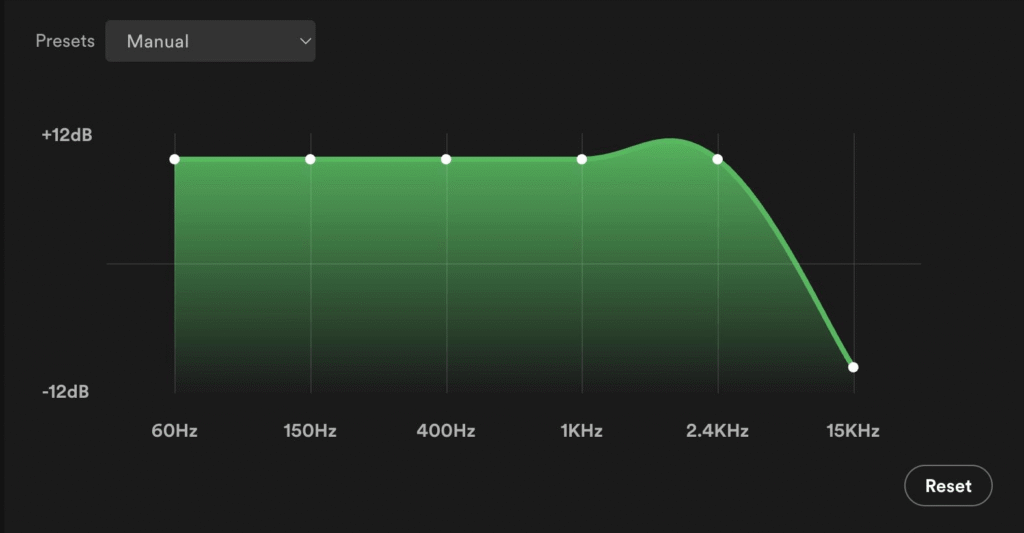
The equalizer works by controlling different frequency ranges:
This feature is especially important because different headphones and speakers produce audio differently. A playlist that sounds balanced on studio headphones may sound flat or overly bass-heavy on cheap earbuds or Bluetooth speakers.
Why Spotify Equalizer Settings Matter
Most casual listeners never adjust EQ settings, even though audio customization can dramatically improve sound quality. The default Spotify sound profile is designed for general listening, but it may not suit every device or genre.
For example, hip-hop and EDM fans often prefer stronger bass, while podcast listeners may want clearer vocals and reduced low-end frequencies. Similarly, users with budget earbuds may need additional mid-range enhancement to improve clarity.
Another important factor is the listening environment. Music played in noisy places often benefits from increased treble or loudness settings, while quieter environments may sound better with balanced EQ adjustments.
Because every headphone model behaves differently, there is no single “perfect” equalizer preset for everyone. Users should experiment gradually until they find a sound profile that feels natural.
How to Use Spotify Equalizer on iPhone
On iPhone, Spotify includes a built-in equalizer that can be accessed through the Playback settings menu. After enabling the EQ feature, users can either choose predefined presets or manually adjust audio frequencies.
The preset system is particularly helpful for beginners because Spotify already includes optimized sound profiles for different genres and listening styles. Users who want deeper customization can manually drag frequency points to shape audio output more precisely.
How to Use Spotify Equalizer on Android
Android handles equalizer settings slightly differently because Spotify often connects with the phone’s native audio system instead of providing a fully integrated EQ interface.
When Android users tap the Equalizer option inside Spotify settings, the app usually opens the device’s built-in audio controls. Depending on the phone manufacturer, users may see additional features such as:
This flexibility gives Android users more advanced audio control compared to some other platforms.
Best Spotify Equalizer Settings for Different Music Genres
Different genres benefit from different EQ tuning styles. Bass-heavy music often sounds better with enhanced low frequencies, while acoustic or orchestral music requires more balanced tuning.
| Genre | Recommended EQ Focus |
|---|---|
| Hip-Hop | Boost bass |
| EDM | Strong bass + treble |
| Rock | Balanced mids |
| Podcasts | Vocal clarity |
| Flat/balanced | Flat / balanced |
| Lo-fi | Warm bass + soft treble |
Podcast listeners usually benefit from slightly increased mids and treble because it improves voice clarity. EDM and dance fans, meanwhile, often prefer deeper bass and brighter highs for more energetic playback.
Best Spotify Equalizer Settings for Headphones
Headphones play a major role in audio quality, which is why EQ settings should always match the device being used.
Bass-heavy headphones already amplify low frequencies naturally, so excessive bass boosting may make music sound muddy. In those cases, reducing bass slightly often creates a cleaner sound.
Cheap earbuds typically struggle with vocal clarity, so boosting mid-range frequencies helps music feel sharper and more detailed.
Studio headphones are designed for balanced sound reproduction, meaning flatter EQ profiles usually work best. Bluetooth speakers, on the other hand, often benefit from slightly increased bass and treble because they lack detailed frequency separation.
This is why searches like best Spotify equalizer settings for headphones and Spotify bass booster settings remain extremely popular.
Other Spotify Playback Settings You Should Optimize
Spotify includes several additional playback features that many users ignore completely, even though they can noticeably improve the audio experience.
One important feature is Audio Normalization, which automatically balances loud and quiet songs. Without normalization, some tracks may sound significantly louder than others, especially across mixed playlists.
Spotify also includes different volume level options such as Quiet, Normal, and Loud. Most users prefer the Normal setting, but louder environments like gyms or public transport may require higher playback intensity.
Another valuable feature is Gapless Playback, which removes silent pauses between tracks without overlapping audio. This works particularly well for live albums, DJ sets, and concept albums designed for continuous listening.
Spotify’s Automix feature attempts to create smoother transitions automatically using AI-powered playback adjustments. While not perfect, it can improve transitions for casual listeners who don’t want to configure crossfade manually.
Streaming quality settings are equally important. Spotify allows users to choose between Automatic, Normal, High, and Very High quality playback. Higher-quality streaming improves clarity and detail but consumes more mobile data.
Does Spotify Crossfade Work With Spotify Connect?
One issue many users encounter is that crossfade behaves inconsistently during Spotify Connect sessions. This happens because playback processing sometimes shifts to the connected device instead of remaining on the phone or computer.
For example, some smart speakers ignore Spotify equalizer settings entirely, while certain devices disable crossfade automatically. Since playback customization is often device-specific, users may need to configure settings individually on different hardware setups.
This limitation frequently confuses users who expect EQ and crossfade settings to sync universally across devices.
Common Spotify Crossfade and Equalizer Problems
Even though Spotify playback settings work well most of the time, users occasionally encounter technical problems.
One of the most common issues is crossfade failing to work properly. In many cases, Spotify Connect or outdated app versions cause the problem. Restarting the app or disabling external device playback usually fixes it quickly.
Another frequent issue involves missing equalizer settings on Android devices. Since Android manufacturers handle audio controls differently, some phones rely entirely on built-in system EQ tools instead of Spotify’s own interface.
Some users also complain that long crossfade durations sound awkward. This usually happens because overlapping vocals or conflicting instrumentals create messy transitions. Reducing fade duration often solves the issue immediately.
Conclusion
Learning how to use Spotify’s crossfade and equalizer settings can completely transform your listening experience. Crossfade creates smoother transitions between tracks, while the equalizer helps personalize sound quality based on your headphones, speakers, and music preferences.
Whether you want deeper bass, cleaner vocals, uninterrupted playback, or DJ-style transitions, Spotify’s playback settings provide powerful customization tools that most users never fully explore.
By experimenting with crossfade duration, EQ presets, and audio quality settings, you can create a far more immersive and enjoyable music streaming experience across every device.
FAQs
Does Spotify crossfade work on free accounts?
Yes, crossfade is available to both free and Premium Spotify users on mobile and desktop.
What is the best crossfade setting for most playlists?
Four to six seconds works well for the majority of playlists. Test and adjust based on the specific songs in your playlist.
Can I use crossfade and gapless playback at the same time?
It is best to use one or the other. Gapless Playback and Crossfade serve similar purposes, and enabling both can produce unpredictable results.
Is Spotify’s equalizer free?
Yes, the equalizer is available to both free and Premium users, though availability varies by device and platform.