How to Create a Playlist on Spotify — Complete Guide (2026)
Learning how to create a playlist on Spotify is one of the first things every listener should know. Playlists are the heart of the Spotify experience; they let you organize your favorite music by mood, activity, or moment, and share that collection with anyone in the world. Whether you want a focused workout playlist, a relaxed road trip mix, a shared party playlist with friends, or a quiet study session queue, Spotify gives you all the tools to build it exactly the way you want. This complete guide walks you through every method, mobile, desktop, and web player, including the newest 2026 features like Prompted Playlists and Smart Reorder.
What You Need Before You Start
Creating a playlist on Spotify does not require much. You just need a Spotify account, free or Premium, and the app installed on your device or access to the Spotify web player at open.spotify.com.
Free users can create playlists, add songs, and share them publicly. The main limitations are that free users cannot download playlists for offline listening and experience ads during playback. Spotify Premium unlocks offline downloads, ad-free listening, and some advanced playlist features like custom cover image uploads in certain regions.
If you have not yet created your Spotify account, the process takes under five minutes. Once you are logged in, you are ready to build your first playlist.
How to Create a Playlist on Spotify Mobile (iPhone and Android)
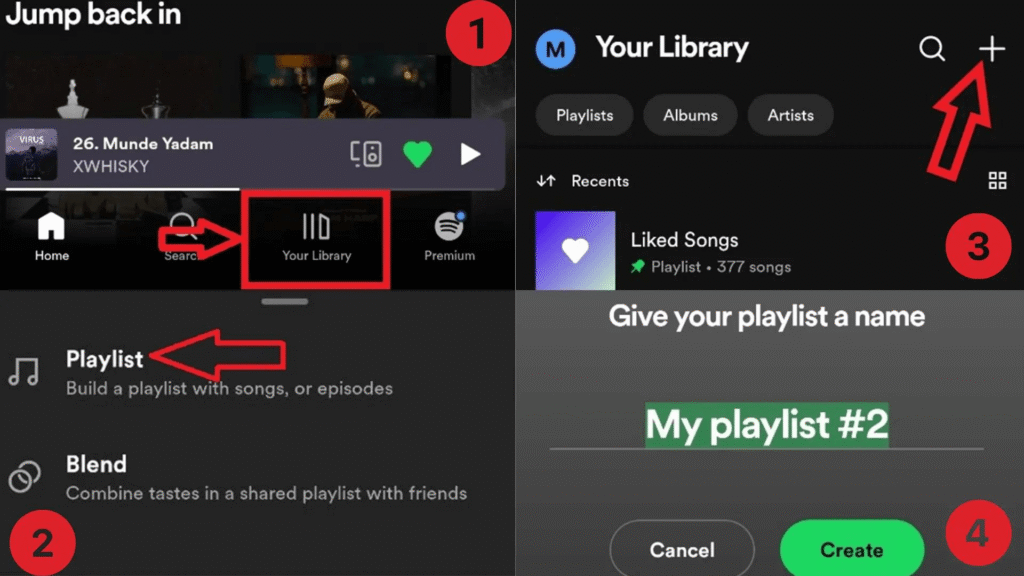
The Spotify mobile app is where most people create and manage their playlists. The process is almost identical on iPhone (iOS) and Android.
Step 1: Open Your Library. Open the Spotify app and tap Your Library in the bottom-right corner of the screen. This is where all your saved playlists, albums, and podcasts live.
Step 2: Tap the Plus Icon. In the top right corner of the Your Library screen, tap the + icon. A menu will appear with options; select Playlist.
Step 3: Name Your Playlist. A dialog box will appear asking you to name your playlist. Choose something descriptive that reflects the mood or theme, for example, “Morning Commute”, “Late Night R&B”, or “Gym Mix 2026”. You can also add an optional description. Tap Create when done.
Step 4: Add Songs. Your new playlist is now created but empty. Use the search bar at the top to find songs, albums, or artists. Tap the + button next to any track to add it. You can also go to any song anywhere in the app, tap the three dots next to it, and select Add to playlist, then choose the playlist you just created.
Step 5: Reorder Your Songs. To change the order of songs in your playlist, press and hold the three horizontal lines (hamburger icon) on the right side of any track and drag it up or down to your preferred position.
Step 6: Add a Cover Image. Tap the three dots at the top of your playlist and select Edit. From there, tap the playlist image to upload a custom photo from your camera roll. A good cover image makes your playlist more shareable and visually appealing.
Step 7: Save and Play Your playlist saves automatically. Tap the green Play button to start listening immediately.
How to Create a Playlist on Spotify Desktop
The Spotify desktop app on Windows and Mac offers a slightly more powerful playlist creation experience, especially for reordering songs and organizing multiple playlists into folders.
Step 1: Open the Desktop App. Open Spotify on your Windows or Mac computer. Make sure you are logged into your account.
Step 2: Click the Plus Icon in Your Library. In the left sidebar, find Your Library. Next to it, click the + icon and select Create playlist from the dropdown menu.
Step 3: Name and Describe Your Playlist. A new playlist will appear in your sidebar with a default name like “My Playlist #1”. Click on the name to rename it. You can also click Add a description beneath the title to add context descriptions that help with Spotify playlist discovery when your playlist is set to public.
Step 4: Add Songs. Click the Find songs search box inside your empty playlist to search for tracks directly. You can also drag and drop songs from any other part of the Spotify app directly into your playlist in the sidebar. Right-clicking any song elsewhere in the app gives you the option to Add to playlist.
Step 5: Reorder by Drag and Drop. On a desktop, reordering is simple: just click and drag any track to its new position. You can also click the column headers (Title, Artist, Album, Date Added) to automatically sort your playlist.
Step 6: Create Playlist Folders. This is a desktop-exclusive feature. Click the + icon in Your Library and select Create folder. Name the folder, for example, “Workouts” or “Chill Vibes,” and then drag multiple playlists into it. Folders help you keep your library organized when you have dozens of playlists.
Step 7: Add a Custom Cover Image. Right-click on your playlist in the sidebar and select Edit details. Click the playlist image on the left to upload a custom cover photo from your computer.
How to Create a Playlist on the Spotify Web Player
The Spotify web player at open.spotify.com works in any browser, Chrome, Firefox, Edge, or Safari, and is ideal for Chromebook users or anyone on a shared computer.
The process is almost identical to the desktop app. In the left sidebar, click the + icon next to Your Library and select Create playlist. Name it, add songs via the search bar or by right-clicking tracks elsewhere on the web player, and customize with a cover image and description. The web player does not support playlist folders, and offline downloads are not available through the browser.
How to Make a Collaborative Playlist on Spotify
A collaborative playlist lets multiple people add, remove, and reorder songs in real time, perfect for group road trips, shared office playlists, or party planning with friends.
How to make a playlist collaborative on mobile: Open the playlist, tap the three dots at the top, and select Invite collaborators. Spotify generates a shareable link that you can send via WhatsApp, iMessage, or any messaging app. Anyone with the link can join and add songs. The link expires after 7 days, but collaborators who have already joined remain active.
How to make a playlist collaborative on desktop: Right-click the playlist in the sidebar and select Make collaborative, or open the playlist, click the three dots, and choose the same option. You can also generate an invite link from here.
Collaborative playlists show the profile icon of whoever added each song, so everyone can see who contributed what. You can revoke access at any time by turning off the collaborative setting. This immediately prevents new additions from non-owners, though existing songs remain.
A fun feature of collaborative playlists in 2026 is emoji reactions; collaborators can react to individual songs with emojis, making the process of building a shared playlist more interactive and social.
How to Make a Playlist Private or Public on Spotify
By default, new playlists on Spotify are set to public, meaning anyone who visits your profile can see and follow them. If you want to keep a playlist just for yourself, you can easily make it private.
On mobile: Tap the three dots on the playlist and select Make private. The playlist will disappear from your public profile immediately.
On desktop: Right-click the playlist in the sidebar and select Make private.
To make a private playlist public again, follow the same steps and select Make public. Public playlists with keyword-rich titles and descriptions have a better chance of appearing in Spotify search results and being discovered by other users.
How to Delete a Spotify Playlist
Deleting a playlist on Spotify is permanent, but your liked songs and other saved content are not affected.
On mobile: Tap the three dots on the playlist and scroll down to Delete playlist. Confirm the deletion.
On desktop: Right-click the playlist in the sidebar and select Delete playlist.
If you accidentally delete a playlist, you can recover it within a limited time window by visiting your account page at spotify.com, going to Account > Recover playlists, and restoring it from there. Spotify keeps deleted playlists recoverable for a short period.
How to Download a Playlist for Offline Listening
Downloading playlists for offline listening is a Spotify Premium exclusive feature, one of the most practical reasons to upgrade.
On mobile: Open the playlist and toggle the Download switch at the top of the playlist screen. A green download icon will appear on each track as it downloads. Once complete, the playlist plays without any internet connection.
On desktop: Click the three dots on a playlist and select Download, or toggle the Download switch that appears at the top of the playlist.
You can download up to 10,000 songs across up to 5 devices. Downloaded playlists are stored locally on your device and play at the highest audio quality setting you have configured in your app settings.
How to Follow Someone Else’s Playlist
You do not have to create every playlist yourself. Spotify has millions of playlists made by other users, Spotify’s editorial team, and artists. To follow a playlist someone has shared with you, open the playlist link and tap Save (the heart icon) or Follow. It will then appear in Your Library for easy access.
Spotify’s editorial playlists, like Discover Weekly, Today’s Top Hits, and mood-based collections, can also be followed the same way and update automatically.
New Spotify Playlist Features in 2026
Spotify has added several powerful new features to playlists in 2025 and 2026 that are worth knowing about.
Prompted Playlists — AI-Generated Mixes

Prompted Playlists are one of the biggest playlist innovations Spotify has launched. Instead of manually searching for and adding songs, you describe the vibe you want in plain language, and Spotify’s AI builds a playlist for you automatically.
To use it: Go to Your Library, tap the + icon, and select Prompted Playlist. Type a description like “upbeat indie pop for a Sunday morning run” or “calm jazz for late night studying,” and Spotify generates a full playlist matching that description. In 2026, Prompted Playlists will also include podcasts so that you can mix music and audio content in the same AI-generated queue.
Smart Reorder
Smart Reorder is a Premium feature that automatically reorders songs in your playlist based on BPM (beats per minute) and musical key for a smoother listening flow. Instead of jarring transitions between very different-energy tracks, Smart Reorder creates a natural build and progression through your playlist. Access it via the three dots menu inside any playlist on desktop.
Taste Profile
Spotify’s Taste Profile feature (launched in beta in early 2026) lets you actively shape your recommendation algorithm by tagging your playlists with moods, genres, and activities. The more accurately your playlists are tagged, the better your Discover Weekly and Daily Mix recommendations become over time.
Spotify Blend
Spotify Blend merges your listening taste with a friend’s into one shared playlist that updates daily. It is different from a collaborative playlist; instead of both people manually adding songs, the algorithm automatically finds music that sits between both of your tastes. Find it under Create > Blend in the app. Blend playlists also show a compatibility score and a taste breakdown of how your music overlaps.
How to Share a Spotify Playlist

Sharing a playlist takes seconds. Open the playlist, tap the three dots, and select Share. You get several options:
Public playlists with keyword-rich names, detailed descriptions, and custom cover images are more likely to be discovered through Spotify search and shared organically. If you want your playlist to grow beyond your friends, treat the title and description like an SEO headline, use specific, searchable phrases like “deep focus study music 2026” or “best hip hop workout playlist”.
Pro Tips for Better Playlists
Use specific, searchable names. “Chill Lofi Beats for Studying 2026” will be discovered far more often than “My Playlist”. Think about what someone would actually search for.
Update your playlist regularly. Spotify’s algorithm notices active playlists and is more likely to recommend them. Adding even a few new tracks every week keeps it fresh.
Balance the energy arc. The best playlists build up, peak, and wind down, rather than jumping randomly between slow and fast tracks. Use Smart Reorder or manually arrange songs for flow.
Use custom cover images. A playlist with a clear, attractive cover image gets more clicks and shares than one with the default grey background.
Keep playlist length appropriate. A workout playlist should be roughly the length of your workout. A dinner party playlist should last the meal. Overly long playlists can feel padded; quality over quantity always wins.
Troubleshooting Common Playlist Problems
Cannot add songs to a playlist? Make sure you are online; you cannot add songs while in offline mode. Also, check that the song is available in your region. Some tracks are region-locked due to licensing.
Playlist not saving? Force-close the app and reopen it. Check your internet connection. If the problem persists, log out and back in to force a sync.
Cannot reorder songs on mobile? Make sure you are not in shuffle mode; reordering is disabled when shuffle is active. Turn shuffle off and try again.
Deleted a playlist by accident? Go to spotify.com, log in, and navigate to Account > Recover playlists. Spotify keeps recently deleted playlists recoverable for a limited time.
Collaborative playlist not working? Make sure the collaborative setting is still enabled; it can sometimes turn off after app updates. Re-enable it via the three dots menu.
Final Thoughts
Creating a playlist on Spotify is one of the simplest and most rewarding things you can do on the platform. Whether you build it manually song by song, invite friends to collaborate, or let the AI do the work with a Prompted Playlist, your perfect mix is just a few taps away. Start with one playlist for your most common listening situation, build it out over time, and let Spotify’s tools help it grow into something genuinely great.
How do I download a playlist for offline listening?
Toggle the Download switch at the top of any playlist. This requires Spotify Premium and saves up to 10,000 songs across 5 devices for listening without internet.
How do I make a collaborative playlist on Spotify?
Open the playlist, tap the three dots, and select Invite collaborators. Share the generated link with friends so they can add and reorder songs in real time.
What is the difference between mobile and desktop playlist creation?
Desktop is better for heavy editing, drag and drop reordering, playlist folders, and column sorting. Mobile is faster for quick playlist creation and adding songs on the go.