Which devices support CapCut? Android, iOS, and PC — Complete Guide
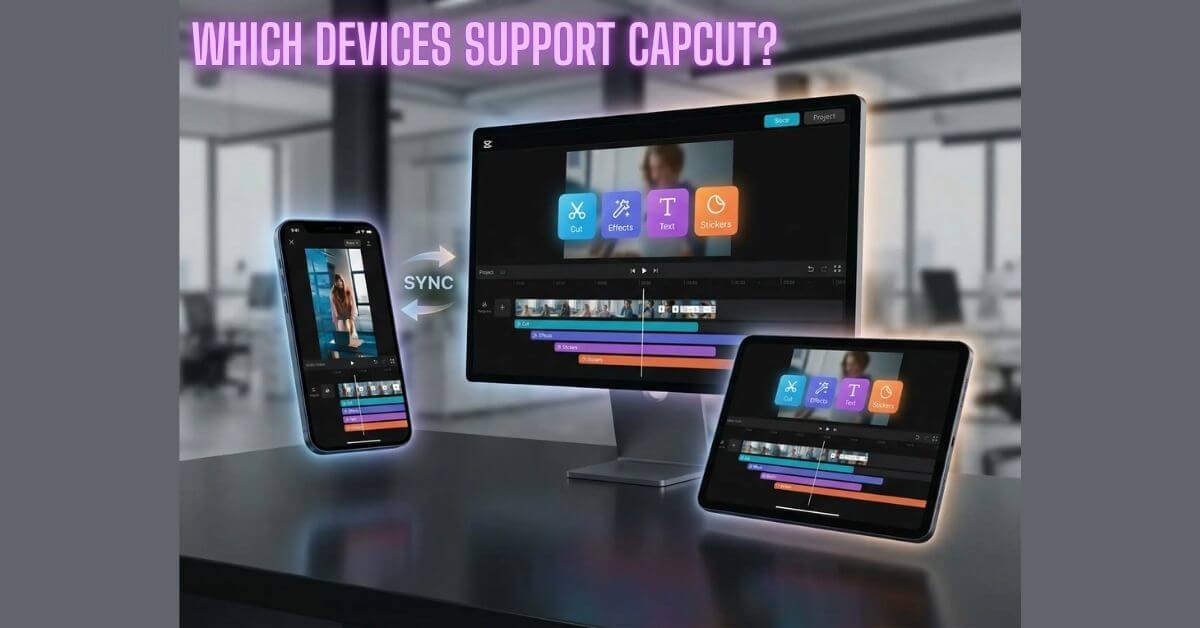
CapCut runs on more platforms than most people expect. Whether you are editing on a budget Android phone, an iPhone, a Windows laptop, or a MacBook, there is a version built for your device. This guide covers every supported platform, the exact system requirements, and which setup gives you the best results.
Which Devices Support CapCut?
CapCut officially works on:
Chromebook and Linux do not have a dedicated app, but CapCut Web runs in any browser on those devices, too.
CapCut on Android: Full Compatibility Guide
Android is where CapCut first became a global hit. It is free to download from the Google Play Store and works across a wide range of devices, from flagship phones to entry-level models.
Minimum vs Recommended Specs
| Spec | Minimum | Recommended |
|---|---|---|
| Android Version | 5.0 (Lollipop) | 8.0 (Oreo) or higher |
| RAM | 2 GB | 4 GB or more |
| Processor | 1.8 GHz quad-core | 2.0 GHz octa-core |
| Storage (free) | 1 GB | 4–8 GB |
| GPU | OpenGL ES 2.0 | OpenGL ES 3.0 or Vulkan |
On minimum specs, you can handle basic cutting, text overlays, and simple edits. Features like AI background removal, chroma key, 4K export, and keyframe animation need more power; they will run slowly or fail on low-end hardware.
Which Android Phones Work Best?
CapCut performs best on phones with flagship or upper-mid-range chips. Devices that handle it well include:
Budget phones with 3–4 GB RAM, like Redmi Note 12 or Samsung Galaxy A34, run CapCut comfortably for standard 1080p projects.
Performance Tips for Low-End Android Devices
If your phone is on the lower end, these steps make a noticeable difference:
- Close all background apps before opening CapCut: this frees RAM for the editor
- Edit in 1080p instead of 4K during the project stage
- Clear the CapCut cache monthly: Settings > Apps > CapCut > Storage > Clear Cache
- Keep at least 2 GB of free storage at all times: CapCut creates heavy temp files during rendering
- Turn off battery saver mode during export: power-saving throttles the CPU and slows down finishing
CapCut on iPhone and iPad — iOS Compatibility
CapCut on iOS is available through the Apple App Store and delivers one of the smoothest mobile editing experiences available. Apple’s tight hardware-software integration means CapCut often runs better on iPhone than on equivalent Android hardware.
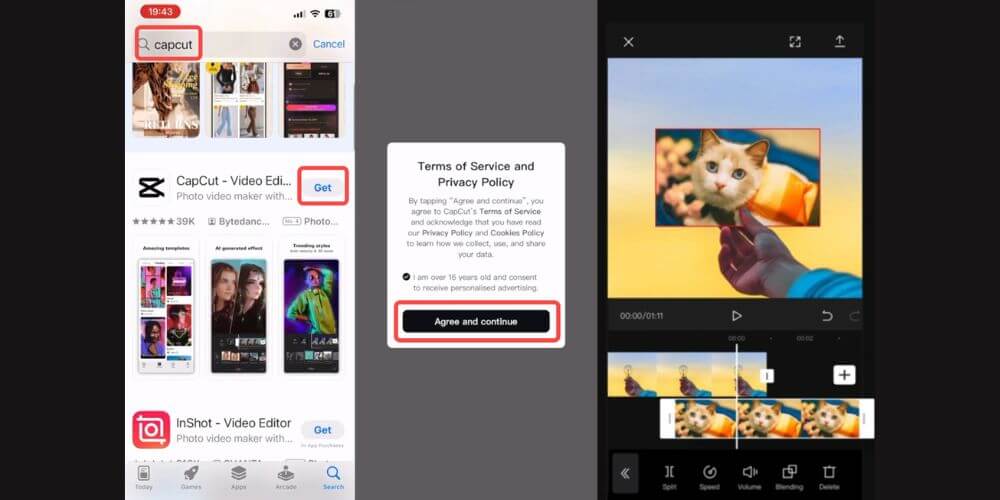
Minimum iOS Requirements
iPhone vs iPad: What Is Different?
Both run the same CapCut app from the App Store, but the experience differs in meaningful ways.
iPhone is designed for quick edits and short-form content. The interface works naturally in the 9:16 format used on TikTok and Instagram Reels.
iPad gives you a larger canvas, better suited for multi-track editing and longer projects. The bigger screen makes timeline work, keyframe animation, and color grading much easier to manage with precision. If you regularly edit videos longer than a few minutes, the iPad is the stronger choice
Does CapCut Work on Older iPhones?
Yes, CapCut supports iPhone 6s (the first model to run iOS 13) and above. But performance on older models is limited:
CapCut on Windows PC — Desktop Experience
CapCut Desktop for Windows is a full timeline-based editor significantly more capable than the mobile app. You get advanced tools, including keyframe animation with curve control, chroma key, motion tracking, and multi-track audio editing on a proper workspace.
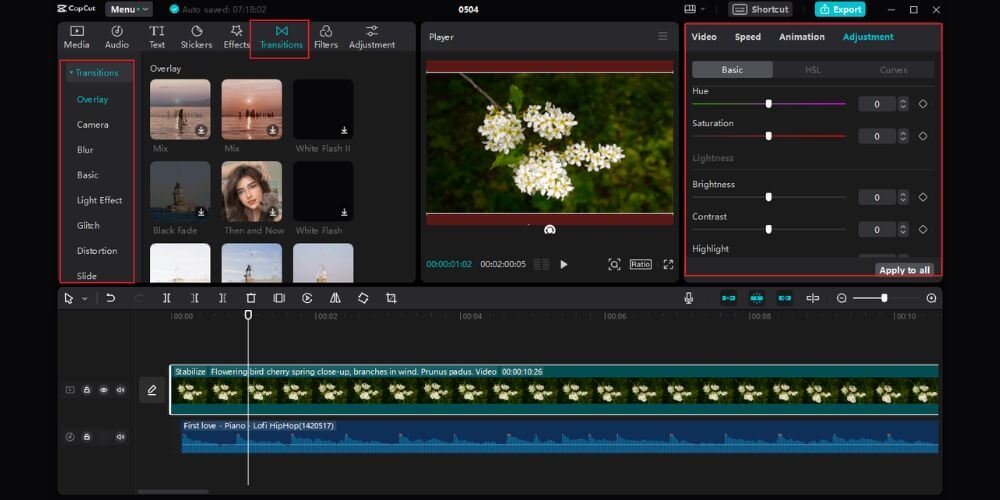
Windows System Requirements
| Spec | Minimum | Recommended |
|---|---|---|
| Windows Version | Windows 10 (64-bit) | Windows 11 |
| RAM | 4 GB | 8 GB or more |
| Processor | Multi-core CPU | Intel Core i5 / AMD Ryzen 5 (8th gen+) |
| GPU | Integrated graphics | Dedicated GPU (NVIDIA or AMD) |
| Storage | 2 GB free | 10+ GB for comfortable project work |
How to Install CapCut on Windows: 3 Methods
Windows Desktop vs Mobile: Key Differences
| Feature | Mobile | Windows Desktop |
|---|---|---|
| Timeline | Basic with overlays | Full multi-track |
| Keyframe animation | Basic | Advanced with curve control |
| Chroma key | Yes | Yes, more precise |
| 4K export | Hardware dependent | Hardware dependent |
| Keyboard shortcuts | No | Yes |
| Offline editing | Yes | Yes |
If you want to go deeper on exporting cleanly from the desktop app, our guide on How to Export 4K Video in CapCut Without Watermark covers every setting in detail.
CapCut on Mac — macOS Compatibility
CapCut for Mac launched in late 2021 and has been updated steadily since. It offers the same full desktop editing experience as the Windows version, with native support for both Apple Silicon and Intel Macs.
macOS System Requirements
Always download CapCut for Mac from the official website or the Mac App Store. Unofficial sources carry real malware risks.
Apple Silicon vs Intel Mac: Performance Difference
This is a meaningful distinction for anyone doing regular editing.
Apple Silicon Macs (M1, M2, M3, M4) run CapCut natively. The built-in Neural Engine accelerates AI features dramatically, auto captions generate faster, background removal is near-instant, and 4K exports finish in a fraction of the time. The app also stays cool and uses far less battery.
Intel Macs from 2017 onward still run CapCut well for standard editing. But AI-heavy features are slower, and 4K export takes considerably longer. An M1 MacBook Air will outperform a 2019 Intel MacBook Pro on most CapCut tasks thanks to its unified memory architecture, which enables smoother real-time playback even with effects applied.
CapCut Web — Use It in Any Browser, No Download Needed
CapCut Web runs at capcut.com in your browser no installation, no setup. Sign in with your CapCut account and start editing immediately.
It works best in Chrome, but Edge, Firefox, and Safari all support it.
What CapCut Web includes:
This is the practical choice for Chromebook users, Linux users, or anyone on a shared or temporary machine. The main limitation is that it requires a stable internet connection; slow connections cause noticeable lag during preview.
If you are unsure whether the free version covers your needs or whether upgrading makes sense, our article on CapCut Free vs Pro — What Is the Difference in 2026 breaks down exactly what each plan includes across all platforms.
CapCut on Chromebook: Two Ways to Run It
There is no dedicated Chromebook app, but two reliable methods work well.
Method 1: Android App via Google Play Store
Most Chromebooks released after 2019 support Android apps. If yours does:
- Open the Google Play Store
- Search for CapCut and install it
- It runs like the standard Android mobile version
Performance depends on your Chromebook’s specs. Models with 4 GB of RAM handle 1080p editing comfortably.
Method 2: CapCut Web in Chrome Browser
Open Chrome, go to capcut.com, and use the web editor. This works on every Chromebook regardless of age or model.
Which Chromebook Specs Do You Need?
For CapCut Web: Any Chromebook with a working internet connection is enough.
For the Android app: 4 GB RAM and a device from 2019 or later will give you a smooth editing experience. Older or lower-RAM models will struggle with effects and multi-layer projects.
CapCut on HarmonyOS
In July 2025, CapCut Pro for HarmonyOS NEXT became officially available for Huawei tablets. Since Huawei devices no longer have access to Google Play, this dedicated version serves Huawei tablet users directly through the Huawei AppGallery. Feature parity with the Android version is close, though some cloud-dependent features may vary.
Does CapCut Work on Linux?
There is no official CapCut app for Linux. The practical solution is CapCut Web — it runs in Chrome or Firefox on any Linux distribution and covers the majority of editing needs without any workaround.
CapCut Offline vs Online: What Works Without Internet?
Works offline after initial setup:
Requires internet:
You can edit and export without internet if your clips and assets are already on the device. AI features always need a connection.
Feature Differences Across All Platforms: Full Comparison Table
| Feature | Android | iOS | Windows | Mac | Web |
|---|---|---|---|---|---|
| Basic editing | ✅ | ✅ | ✅ | ✅ | ✅ |
| Full multi-track timeline | Limited | Limited | ✅ | ✅ | Limited |
| Advanced keyframe animation | Basic | Basic | ✅ | ✅ | Basic |
| Chroma key | ✅ | ✅ | ✅ | ✅ | ✅ |
| AI auto captions | ✅ | ✅ | ✅ | ✅ | ✅ |
| AI background removal | ✅ | ✅ | ✅ | ✅ | ✅ |
| 4K export | ✅ | ✅ (iPhone 11+) | ✅ | ✅ | ✅ (Pro) |
| Keyboard shortcuts | ❌ | ❌ | ✅ | ✅ | Partial |
| Offline editing | ✅ | ✅ | ✅ | ✅ | ❌ |
Desktop versions give you more precision and control. Mobile is better for speed and quick turnaround.
CapCut Subscription: Which Plans Work on Which Platforms?
CapCut Pro is the paid plan, and one subscription covers all platforms. Subscribe on Android via Google Play, on iPhone via the App Store, or directly through the CapCut website on desktop or web, and Pro features activate on every device you sign in to.
CapCut Pro unlocks 4K export at 60fps, cloud storage, premium templates, advanced AI tools, and watermark-free exports everywhere. For a full breakdown of whether it is worth upgrading, read our guide on CapCut Free vs Pro: What Is the Difference in 2026.
If you run into issues getting started with account creation, login errors, or device-specific problems, our How to Create a CapCut Account guide and the CapCut Login Not Working troubleshooting article cover the most common fixes step by step.
Which Platform Is Best for You? Quick Decision Guide
Final Word
CapCut covers more ground than almost any other video editor on Android, iOS, Windows, Mac, HarmonyOS, and the browser. The right platform depends on your workflow: use mobile for speed, desktop for precision, and web for flexibility. Pick the one that fits how you actually edit, and CapCut will handle the rest.
Frequently Asked Questions
Which device supports CapCut?
CapCut officially supports Android (5.0+), iOS (13.0+), Windows (10 64-bit+), macOS (10.15+), and HarmonyOS NEXT tablets. It also runs in any modern web browser without installation.
Can I use CapCut on two devices?
Yes. Sign in with the same CapCut account on multiple devices. Projects sync through the cloud, so you can start editing on your iPhone and continue on your Windows PC or Mac.
Can you use CapCut on PC and mobile?
Absolutely. CapCut has separate apps for PC (Windows and Mac) and mobile (Android and iOS). Both use the same account, and cloud projects are accessible across all devices.
What iOS version is required for CapCut?
CapCut requires iOS 13.0 or later, covering iPhone 6s and all newer models. For the best AI feature performance, iOS 15 or above is recommended.
Which is better, CapCut PC or CapCut mobile?
CapCut PC is better for complex, longer-form projects, as it offers a full multi-track timeline, advanced keyframe animation, and keyboard shortcuts. CapCut mobile is better for quick edits and short-form content. Many creators film on iPhone or Android, then finish the edit on PC or Mac for the best of both.