How to Use Spotify Collaborative Playlists (Complete Guide 2026)

Music has become more social than ever, and Spotify collaborative playlists make it easy to enjoy songs with friends, family, coworkers, or party groups in real time. If you’ve ever wanted multiple people to add songs to the same playlist, edit tracks together, or build the perfect road-trip soundtrack, this feature is exactly what you need.
In this complete guide, you’ll learn how to use Spotify collaborative playlists, how to invite contributors, manage playlist permissions, fix common problems, and make the most of Spotify’s social music features. Whether you’re using the mobile app, desktop version, or web player, this tutorial covers everything step by step.
What Is a Spotify Collaborative Playlist?
A Spotify collaborative playlist is a shared playlist that allows multiple users to add, remove, and reorder songs. Instead of one person managing the playlist alone, contributors can work together to build a shared music experience. This feature has become extremely popular among Spotify users because it transforms ordinary playlists into interactive social spaces where everyone can participate.
Collaborative playlists are commonly used for parties, gym sessions, office environments, study groups, family gatherings, and road trips. Since every contributor can personalize the playlist, the final result usually feels more dynamic and diverse than a standard playlist created by a single person.
How Collaborative Playlists Work
When you enable collaboration on a playlist, Spotify creates a special invite link that you can share with other users. Once someone joins through the link, they gain permission to add tracks, reorder songs, and remove music from the playlist. All changes sync in real time across devices, which makes the experience smooth and highly interactive.
Difference Between Normal and Collaborative Playlists
A standard Spotify playlist is controlled only by the playlist owner. Other users may be able to listen if the playlist is public, but they cannot edit or manage the tracks. In contrast, a Spotify collaborative playlist gives multiple users editing access, allowing them to shape the playlist together.
| Regular Playlist | Collaborative Playlist |
|---|---|
| Single editor | Multiple editors |
| Private control | Shared access |
| Static updates | Real-time editing |
| Limited interaction | Social music collaboration |
This collaborative system is one of Spotify’s strongest social listening features because it encourages users to interact with music naturally.
Benefits of Using Spotify Collaborative Playlists
One of the biggest reasons people use shared Spotify playlists is the ability to discover music from different tastes and personalities. Instead of listening to the same artists repeatedly, users are exposed to new genres, trending songs, hidden gems, and personalized recommendations from their friends or collaborators.
Collaborative playlists also make group events much easier to manage. Rather than allowing one person to control the music at a party or gathering, everyone can contribute songs they enjoy. This creates a more balanced and entertaining listening experience for the entire group.
Another major advantage is real-time playlist syncing. When someone adds a track, it appears almost instantly for everyone else. This keeps the playlist active, fresh, and continuously evolving throughout the day.
Some of the most common uses include:
Because Spotify supports collaborative playlists across mobile, desktop, and web player versions, users can edit playlists from almost any device conveniently.
How to Create a Spotify Collaborative Playlist on Mobile
Creating a collaborative playlist on the Spotify mobile app is very simple. The process works similarly on both Android and iPhone devices.
First, open the Spotify app and go to Your Library. Tap the option to create a new playlist and choose a name that matches the playlist’s purpose. After the playlist is created, open it and locate the collaboration icon or the three-dot menu. Spotify will usually display an option such as “Invite collaborators” or “Make collaborative.”
Once enabled, Spotify generates an invitation link that you can share with others. Anyone who joins through the link becomes a contributor and can immediately begin adding music to the playlist.
Many users prefer sharing playlist invitations through:
After collaborators join, the playlist becomes a shared music space where contributors can continuously update tracks together.
How to Make a Collaborative Spotify Playlist on Desktop
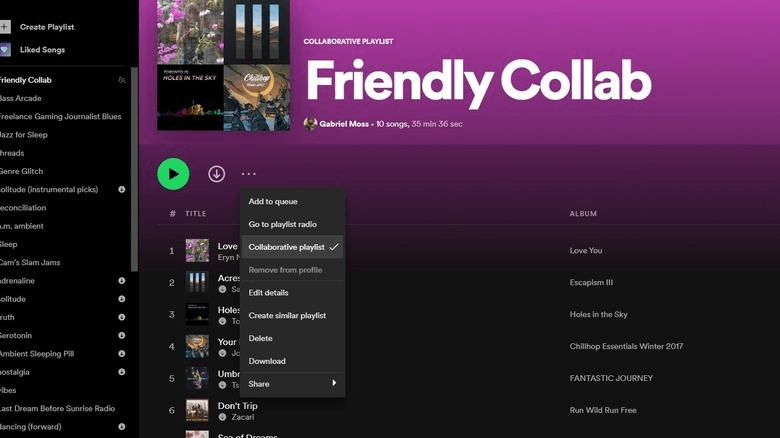
If you use Spotify on a desktop computer, the process is equally straightforward. Open Spotify and select either an existing playlist or create a new one. Click the three-dot menu near the playlist name and look for the collaboration option.
After enabling collaborative mode, Spotify creates a shareable invite link. You can send this link to friends, coworkers, or group members so they can join the playlist. The desktop version also allows users to organize tracks more efficiently because drag-and-drop controls are easier to manage on larger screens.
Spotify Web Player supports the same functionality, meaning users who don’t install the desktop app can still participate in collaborative playlists directly through a browser.
How to Invite Friends to a Spotify Collaborative Playlist
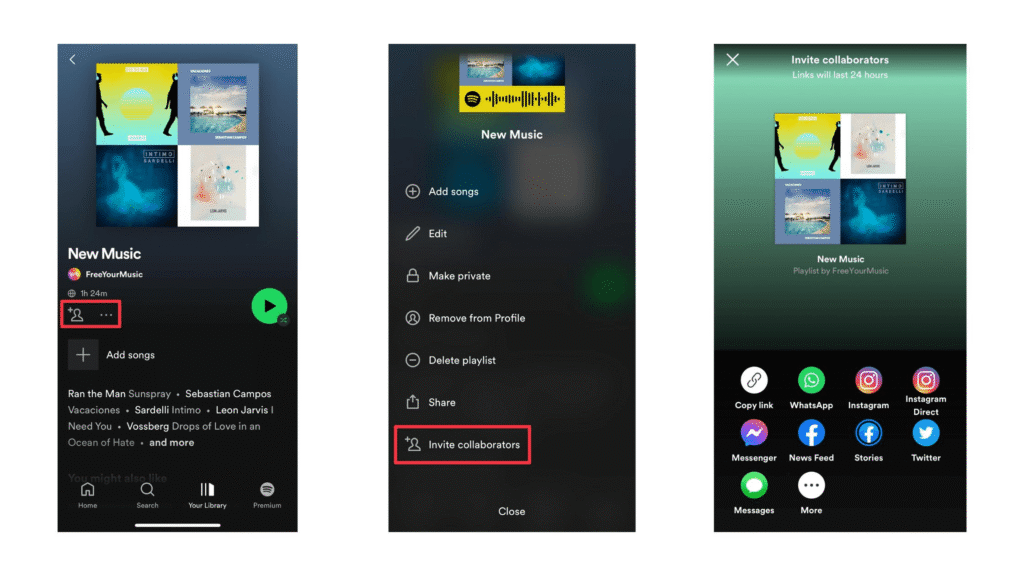
Spotify provides several easy ways to invite contributors. The fastest method is simply copying the playlist invite link and sending it directly to friends or group members. This works well for private sharing and small group collaboration.
Users also commonly share playlists through social media platforms and messaging apps because Spotify integrates smoothly with modern communication tools. Many people send collaborative playlists through Instagram Stories, Facebook Messenger, Discord servers, WhatsApp groups, or Snapchat chats.
For larger communities or online groups, public sharing can help playlists grow quickly. However, it’s important to remember that anyone with access to the invite link may gain editing permissions depending on the playlist settings.
How to Add Songs to a Collaborative Playlist
Adding music to a collaborative playlist works exactly like adding songs to a standard Spotify playlist. Users simply search for a song, artist, or album, open the options menu, and select the collaborative playlist from the list.
Collaborators can also reorganize songs to improve playlist flow. This is especially useful for:
Since contributors can remove tracks as well, playlist management becomes a shared responsibility. Larger groups usually benefit from having simple playlist rules to prevent spam, duplicate tracks, or unrelated songs from affecting the listening experience.
Spotify Collaborative Playlist Privacy Settings
Understanding playlist permissions is important when managing collaborative playlists. Spotify allows playlists to remain either public or private while still supporting collaboration features.
A private collaborative playlist limits visibility to invited contributors only, while public playlists may be discoverable by other Spotify users. However, editing access still depends on invitation permissions.
If needed, playlist owners can remove contributors by disabling collaboration or generating a new invite link. This is useful when playlists become overcrowded or when unwanted users begin making unnecessary edits.
You can also completely stop collaboration at any time by turning off collaborative mode inside playlist settings. Once disabled, editing rights return exclusively to the playlist owner.
Common Spotify Collaborative Playlist Problems and Fixes
Even though Spotify collaborative playlists work most of the time smoothly, users occasionally experience technical issues. One of the most common problems is the collaborative option not appearing inside playlist settings. This usually happens because the Spotify app is outdated or temporarily experiencing a bug.
Another common issue occurs when friends cannot edit the playlist after joining. In many cases, this problem is caused by expired invite links or incorrect permission settings. Generating a fresh invitation link often fixes the issue immediately.
Playlist syncing delays can also happen occasionally, especially during poor internet connectivity. Since Spotify uses cloud-based synchronization, updates may take a few moments to appear across all devices.
If collaborative playlists stop functioning properly, these troubleshooting steps usually solve the problem:
Most collaboration issues are temporary and resolve quickly after refreshing the app.
Spotify Blend vs Collaborative Playlists
Many users confuse Spotify Blend with collaborative playlists, but both features work differently. Spotify Blend automatically creates a playlist using AI-based music recommendations from multiple users’ listening habits. The playlist updates over time based on listening activity and recommendation algorithms.
Collaborative playlists, on the other hand, rely entirely on manual editing. Users personally select tracks, rearrange songs, and manage playlist content together.
| Spotify Blend | Collaborative Playlist |
|---|---|
| AI-generated songs | User-added songs |
| Automatic recommendations | Manual editing |
| Personalized listening | Shared control |
| Limited customization | Full editing access |
Users who want automatic recommendations often prefer Spotify Blend, while those who enjoy interactive music sharing usually choose collaborative playlists.
Best Ways to Use Collaborative Playlists
Collaborative playlists are flexible enough for almost any situation. Party playlists are among the most popular because guests can continuously add songs throughout the event. This keeps the music fresh and prevents one person from controlling the entire playlist.
Road trips also become more enjoyable when every passenger contributes music. Different contributors can add energetic driving tracks, relaxing songs, or nostalgic classics that match the journey’s mood.
Students frequently use collaborative playlists during study sessions because shared lo-fi music and instrumental tracks help create a focused environment. Similarly, office teams often build collaborative playlists to improve workplace energy and team bonding during remote work sessions.
Some of the most common playlist themes include:
Because collaborative playlists constantly evolve, they usually feel more engaging than static playlists managed by a single person.
Tips for Managing a Shared Spotify Playlist
A successful collaborative playlist usually requires some organization, especially when many contributors are involved. Without structure, playlists can quickly become cluttered with duplicate songs or unrelated tracks.
One effective strategy is grouping music by mood, genre, or activity type. This improves listening flow and keeps playlists organized naturally. Contributors should also check existing tracks before adding new songs to avoid repetition.
For larger playlists, setting simple rules can help maintain quality. Some groups prefer limiting explicit songs, while others focus on keeping music within a specific theme or mood. These small guidelines improve the overall listening experience without reducing creativity.
Regular playlist updates are also important because inactive playlists quickly become outdated. Adding fresh tracks consistently helps maintain contributor engagement and improves music discovery over time.
Can Free Spotify Users Use Collaborative Playlists?

Yes, Spotify Free users can still create and join collaborative playlists. The core collaboration features remain available even without a Premium subscription.
Free users can:
However, some restrictions still apply. Spotify Free accounts may experience advertisements, shuffle-only playback on certain devices, lower audio quality, and limited offline listening. Despite these limitations, collaborative playlist functionality remains largely unaffected.
Final Thoughts
Learning how to use Spotify collaborative playlists can completely transform the way you share and discover music. Instead of creating playlists alone, users can build interactive music collections together with friends, family members, coworkers, or online communities.
Whether you’re planning a party, organizing a workout playlist, building a study soundtrack, or creating the perfect road-trip mix, collaborative playlists provide a simple and highly engaging solution. With real-time editing, shared music discovery, and easy contributor management, Spotify continues to make music streaming more social and interactive than ever before.
How Many People Can Collaborate on a Spotify Playlist?
Spotify supports a large number of contributors, making collaborative playlists suitable for communities, events, and online groups.
Can Collaborators Remove Songs?
Yes, all contributors with editing access can remove songs from the playlist.
Yes, all contributors with editing access can remove songs from the playlist.
This issue is usually related to expired links, disabled collaboration settings, or outdated app versions.
Does Spotify Notify Collaborators?
Spotify may display playlist activity updates, but it does not always send direct notifications for every change.